Step 2- Login to Access Portals
In this step
Choose an access portal and log in. Next: Step 3 — run jobs.
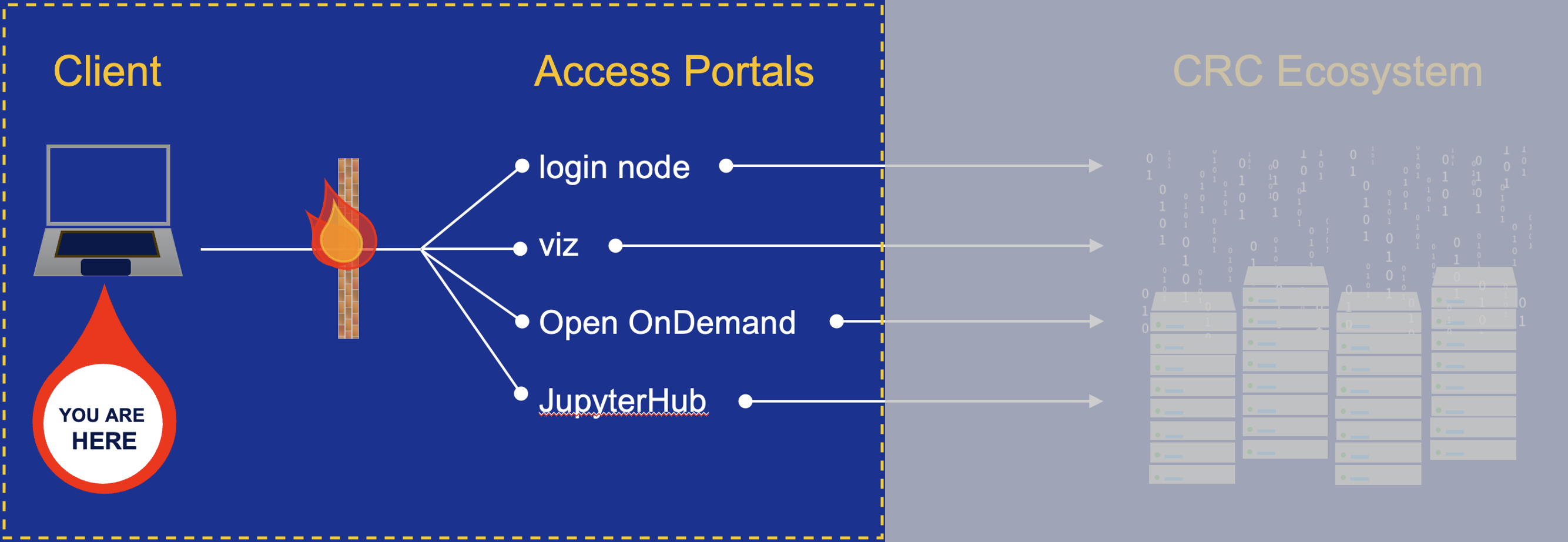
Once you've connected to the PittNet VPN (see Step 1), you can reach the CRCD computing and storage resources through several portals. The most common entry points are below; if you're unsure, start with Terminal SSH — it's the most flexible and supports every workflow.
-
Terminal SSH to Login Node
Command-line access for scripting and for submitting and monitoring jobs — the most flexible option.
-
Open OnDemand Web Portal
Browser-based access to files, interactive apps, and notebooks — the simplest on-ramp.
-
Linux Desktop Visualization Node
A full graphical Linux desktop for GUI applications and visualization.
-
JupyterHub Web Portal on Teach Cluster
Notebooks on the Teach cluster, for courses and teaching.
Login nodes are for light work only
Whichever portal you use, the login nodes are a shared gateway for editing files, managing data, and submitting jobs — not for running analyses. Heavy processes there slow the system for everyone and may be terminated. Run real work in an interactive session or a batch job; see Login Nodes for the per-user limits.
A schematic of this part of the process is highlighted below.