RStudio Server on the GPU Cluster
Open OnDemand gives researchers remote web access to RStudio Server with the ability to connect to dedicated GPUs. Through this web portal, researchers can use GPU compute nodes to accelerate data analysis and AI/ML workloads.
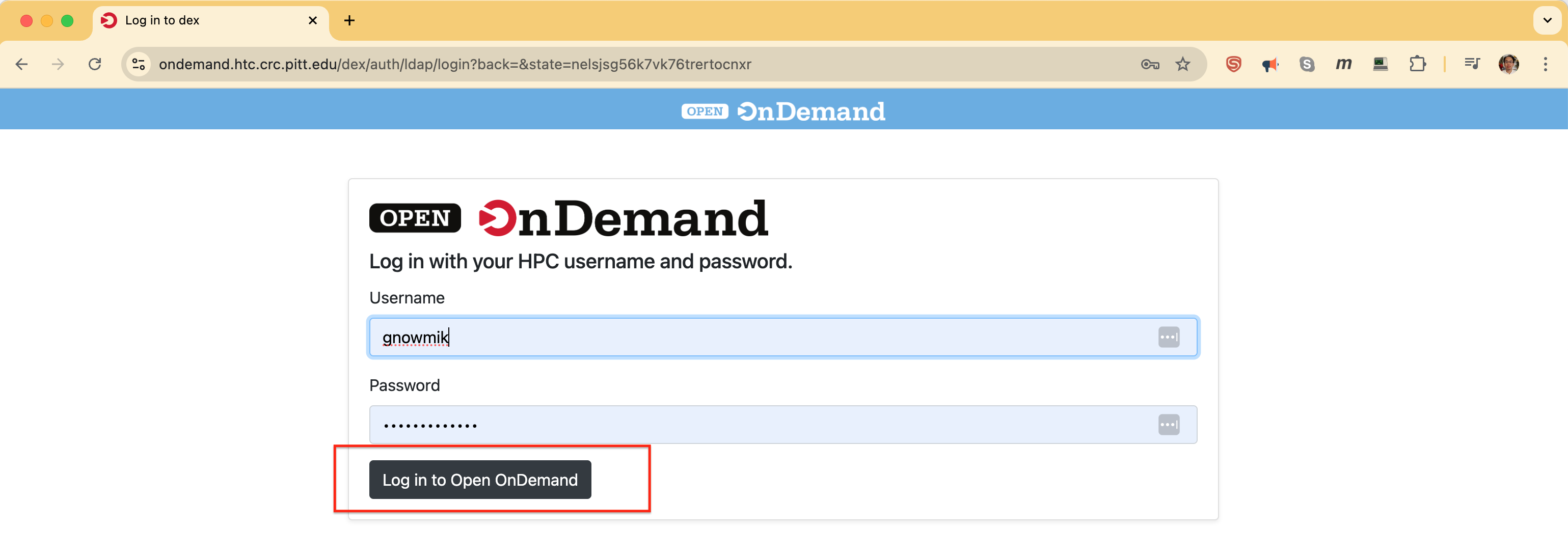
Step 1. Connecting to Open OnDemand
Point your browser to the address below and authenticate with your Pitt credentials. Your username is the same one you use for my.pitt.edu, in all lowercase. The host should be reachable for all users on Wireless-PittNet; if it isn't, try again while connected to the VPN.
- Web hostname: https://ondemand.htc.crc.pitt.edu
- Authentication: Pitt username (all lowercase) and password
Step 2. Selecting from Interactive Apps
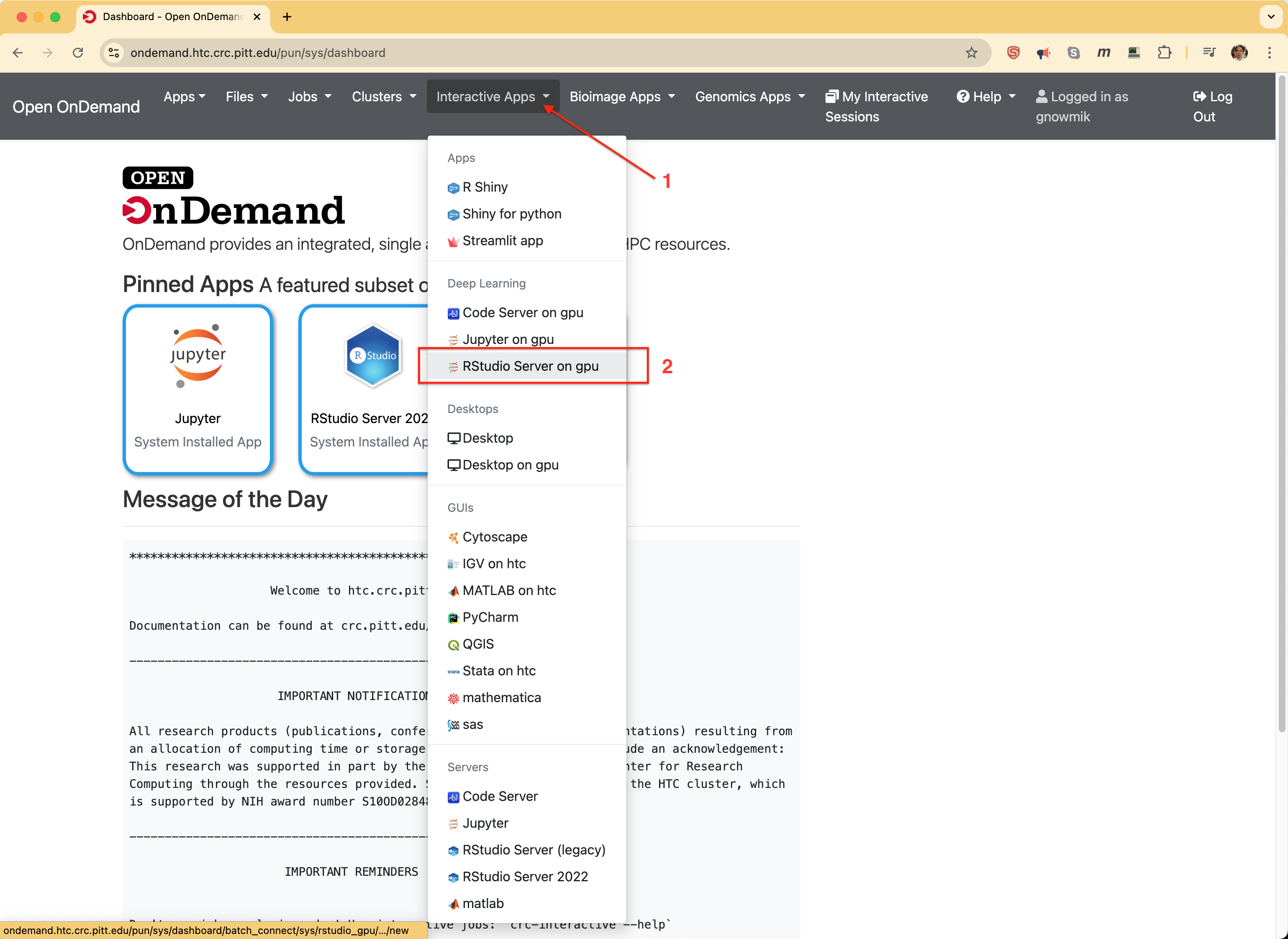
The Interactive Apps dropdown lists several installed software packages, including RStudio Server on gpu.
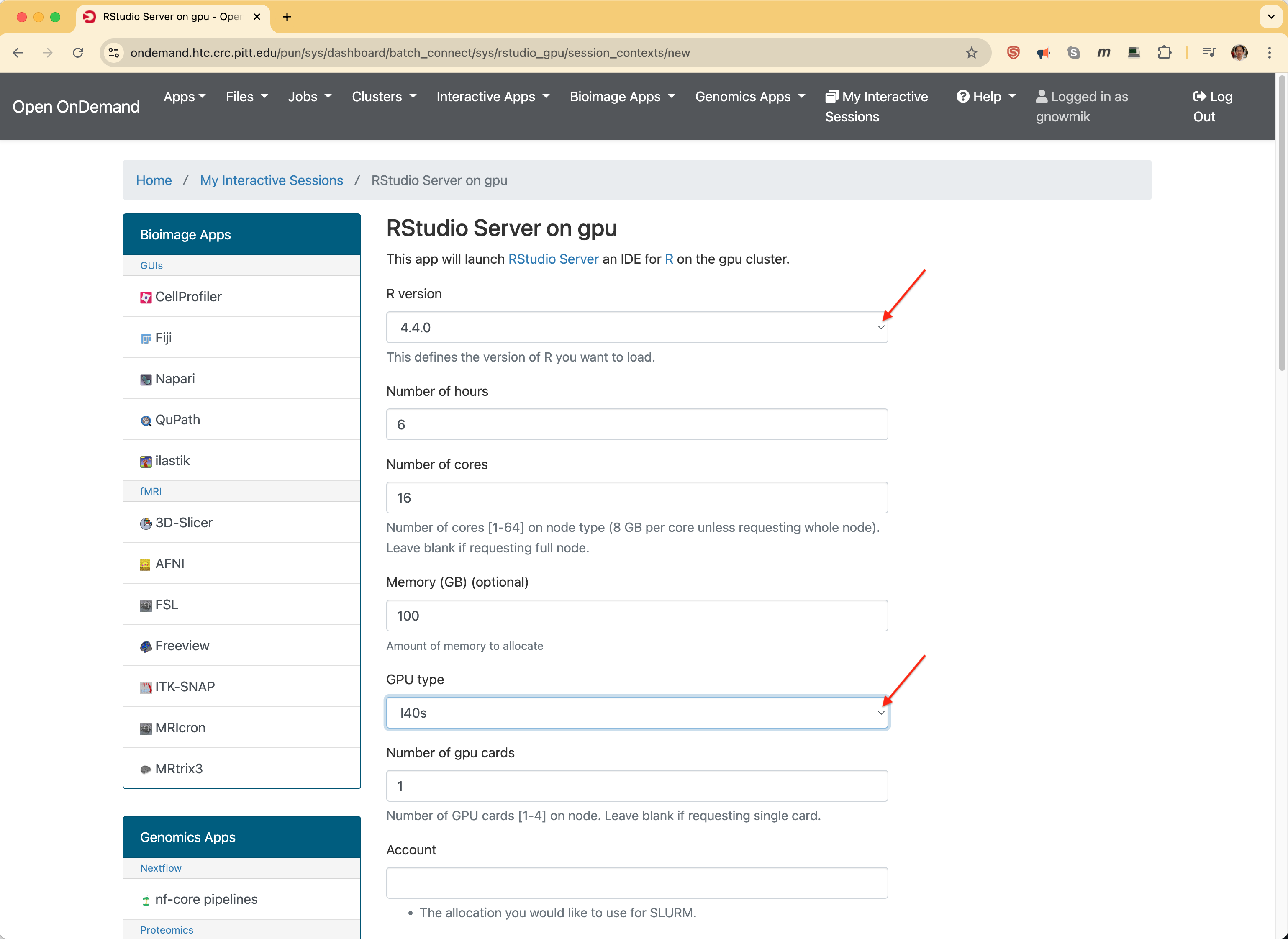
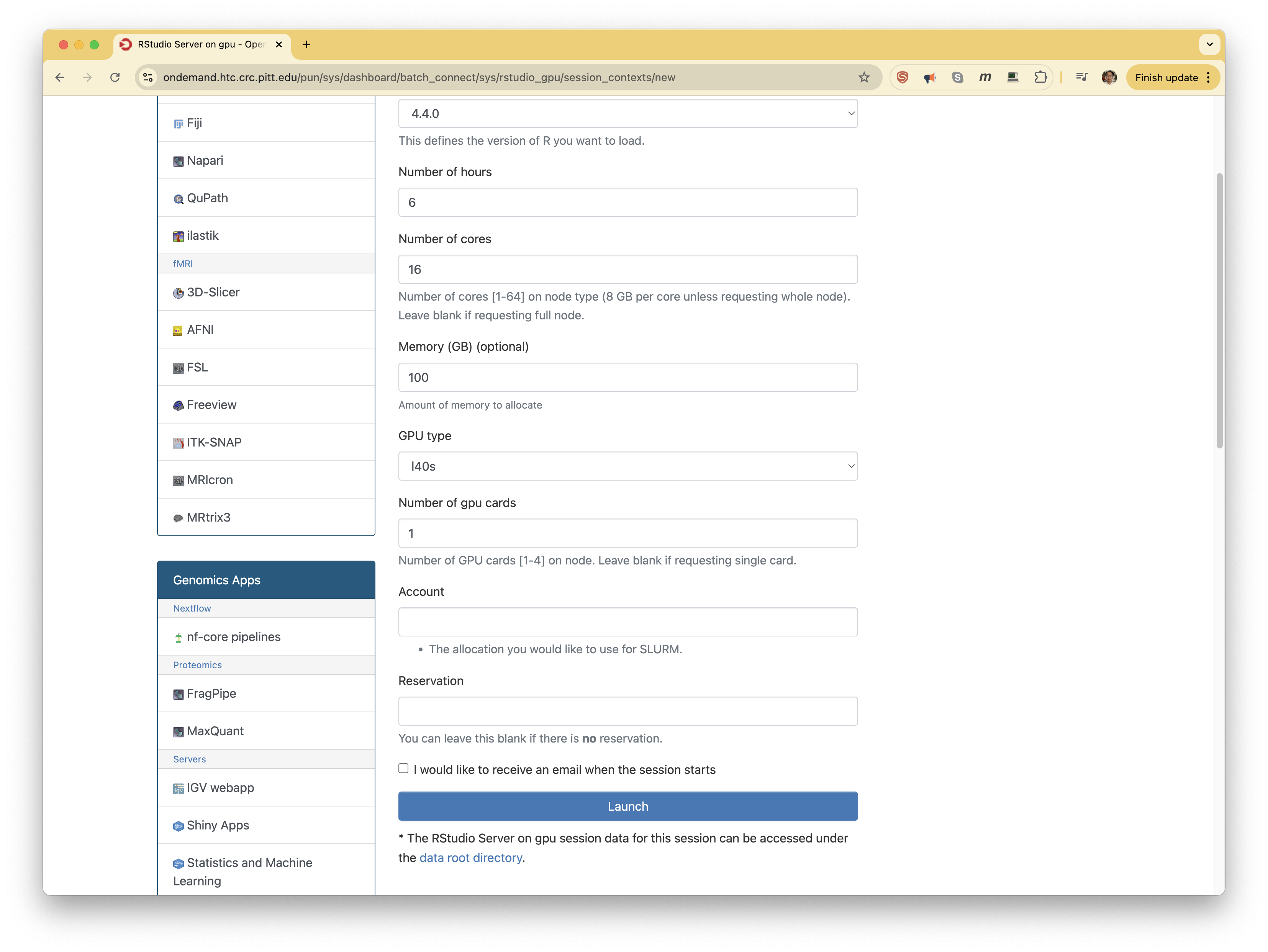
You're then taken to a form where you select the R version and GPU type, the number of CPU cores and GPU cards, the host memory, and how long you need the resource. The Account field is for users who belong to multiple Slurm accounts and want to charge the SUs to a particular account; leaving it empty charges your default allocation.
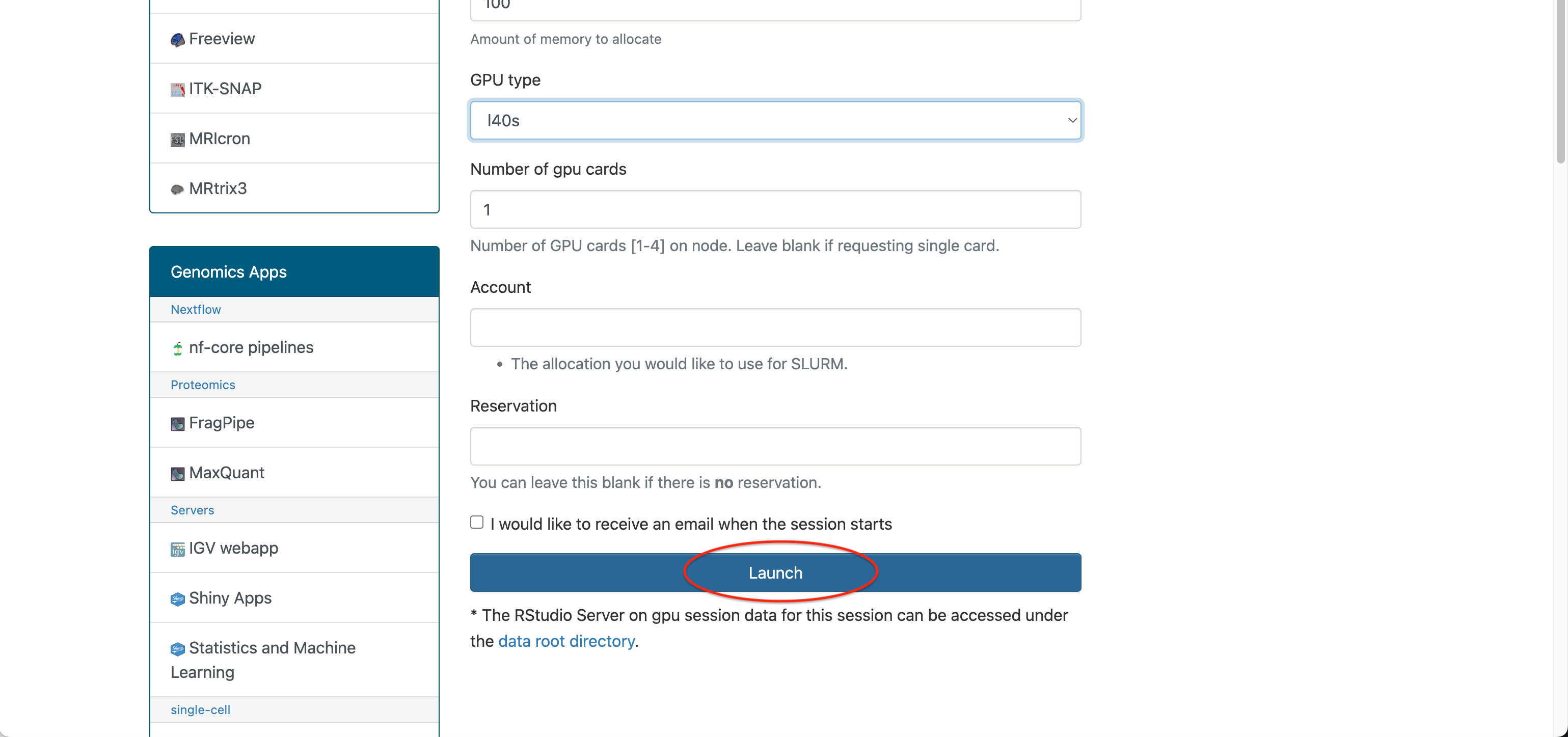
Pressing Launch submits the job to the GPU cluster, starts an RStudio Server instance on the assigned compute node, and returns a Connect to RStudio Server link in the web GUI.
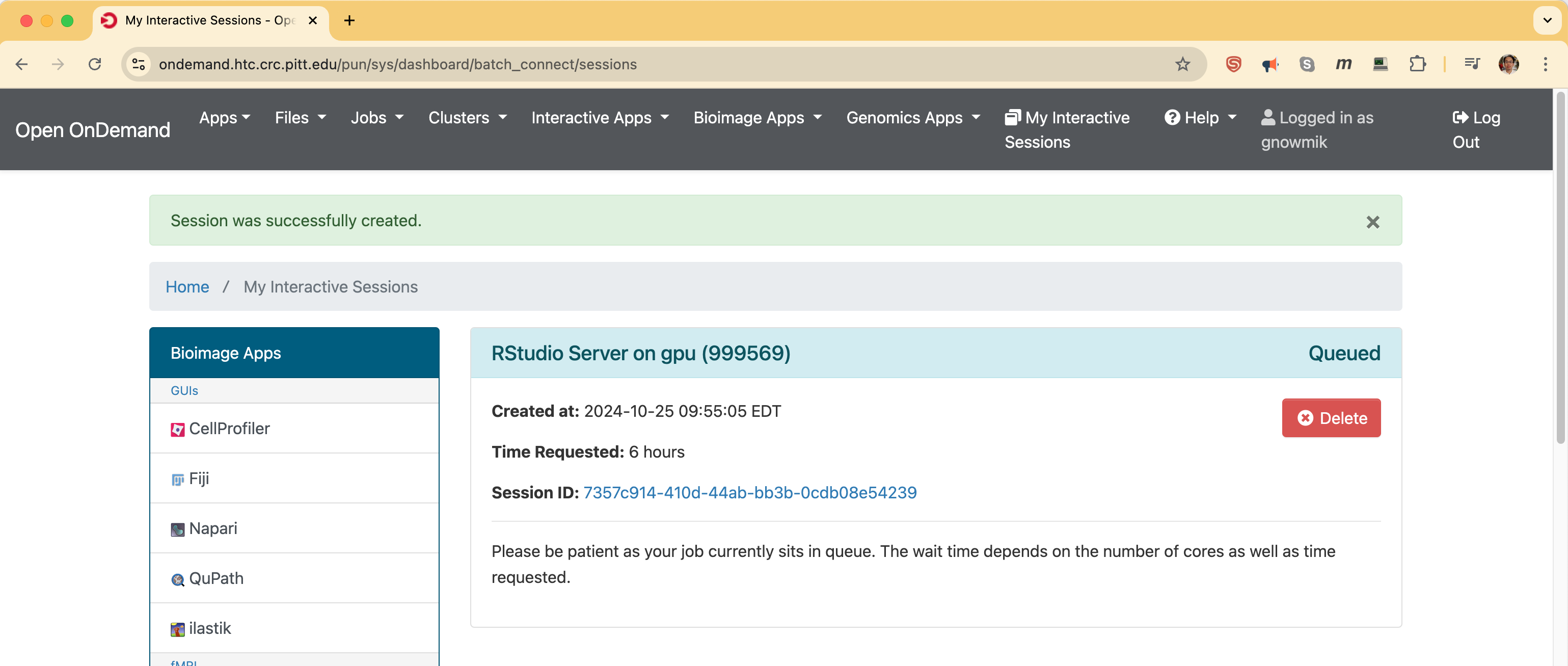
The job moves through three stages. Queued means it has been submitted to the Slurm scheduler.
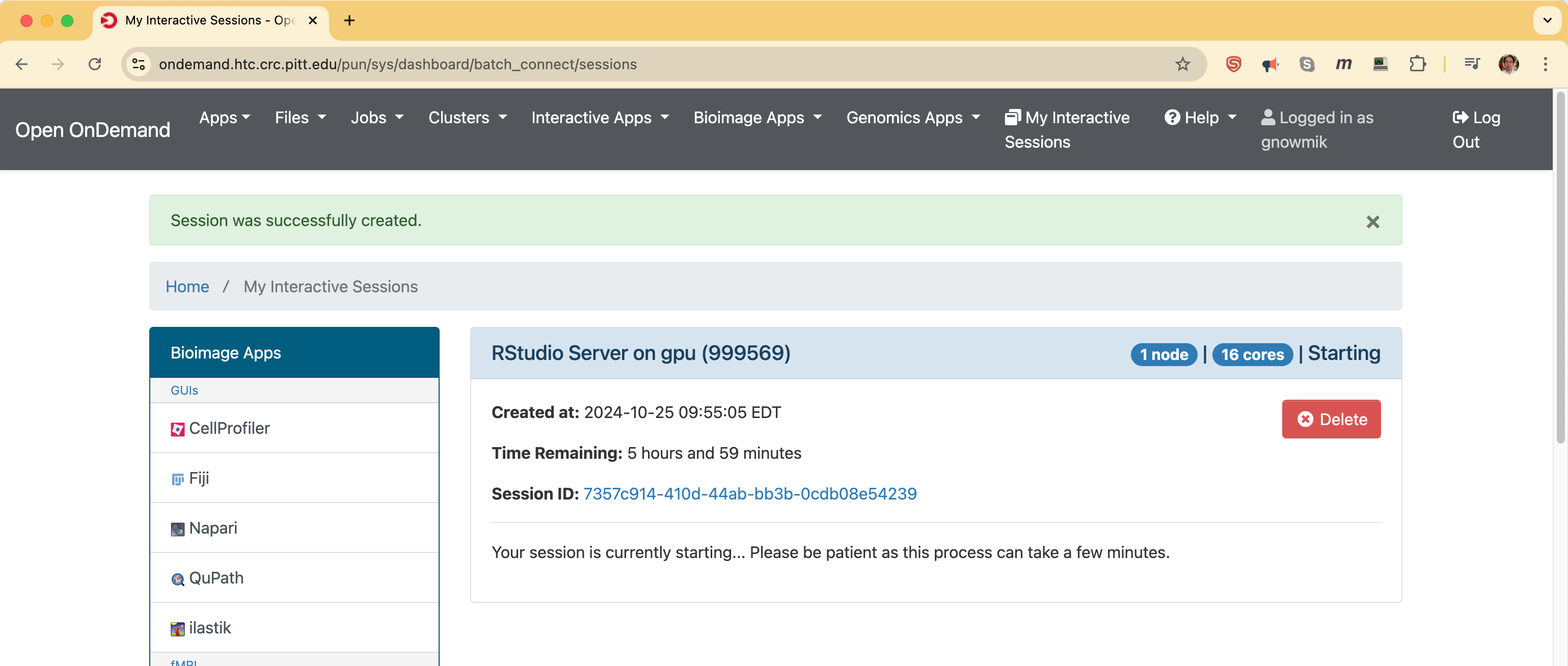
Starting means Slurm has allocated the requested compute resources — here, 1 node with 16 cores.
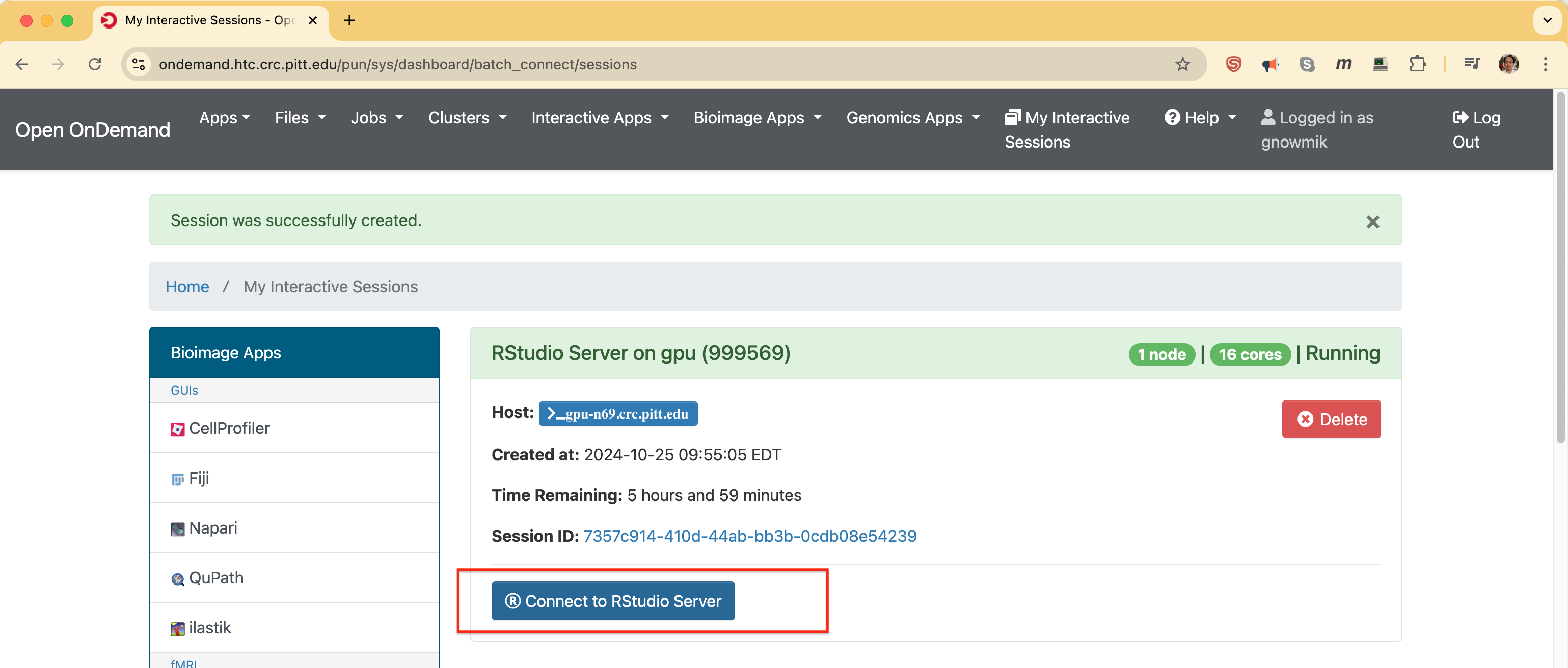
Running means the RStudio Server job is executing on the indicated Host and will keep running until Time Remaining is exhausted. Click Connect to RStudio Server to open the familiar RStudio interface in a new browser tab.
Step 3. Interacting with the RStudio Server
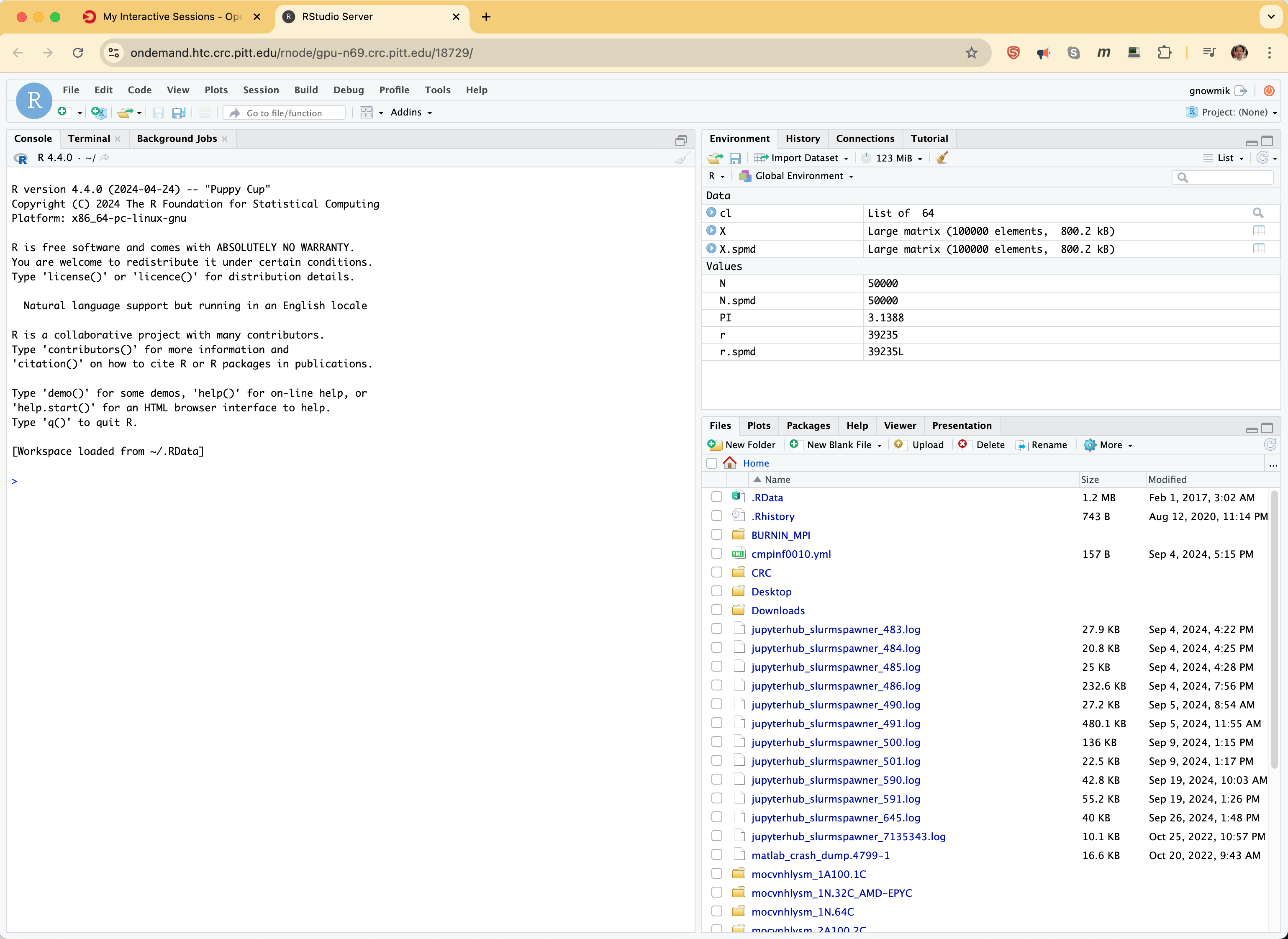
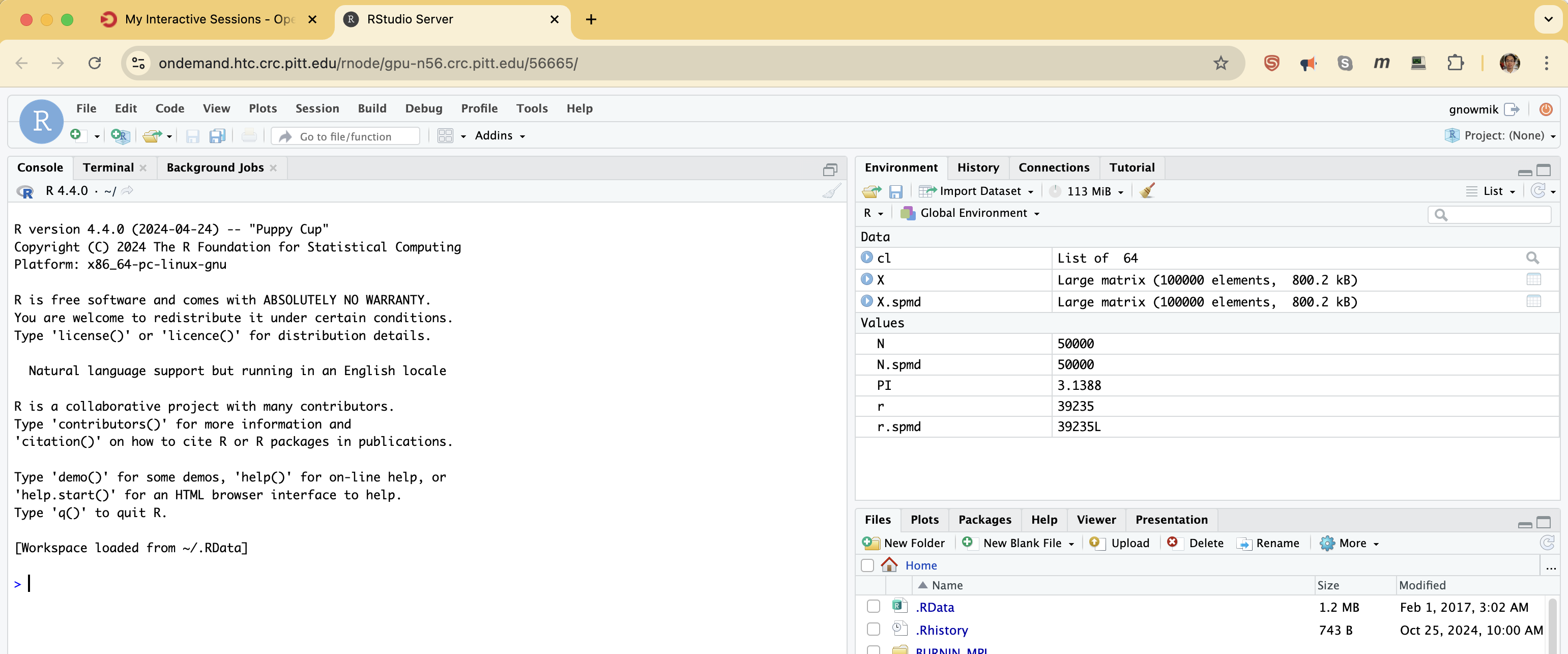
If successful, you'll see the GUI below. The RStudio GitHub site links to the RStudio User Guide, which documents all aspects of the interface.
If you can't get an RStudio Server instance, submit a help ticket and we'll troubleshoot. A likely cause is that your account doesn't have an allocation on the requested cluster, or that the requested resource is currently busy — see the Appendix.
Step 4. Ending your session
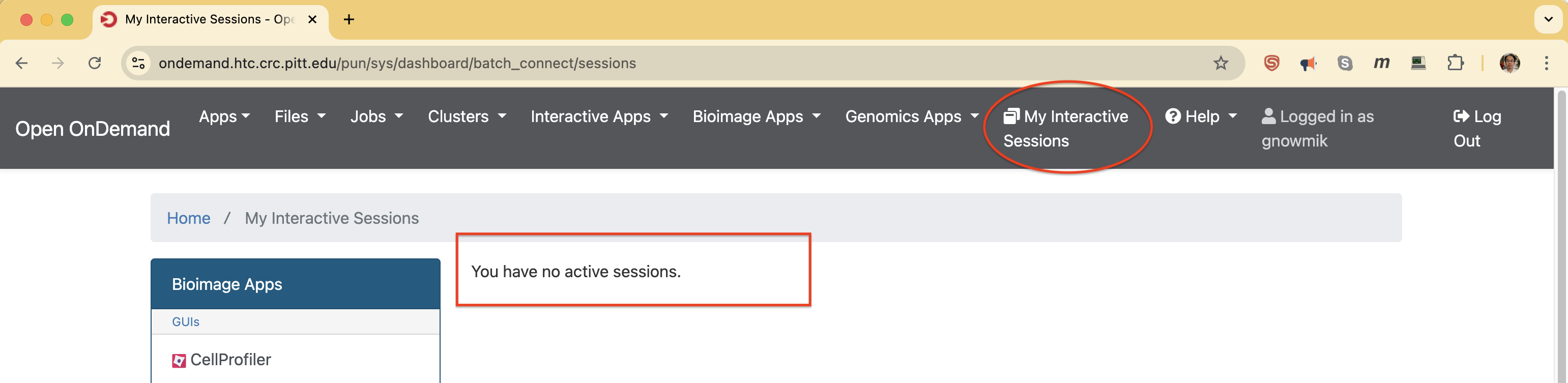
An RStudio Server session persists until Time Remaining is exhausted or you Delete the job. If you close the browser window or get disconnected, the session keeps running in the background. To return to it, log in to Open OnDemand and click My Interactive Sessions in the top menu to see all running or queued OnDemand jobs.
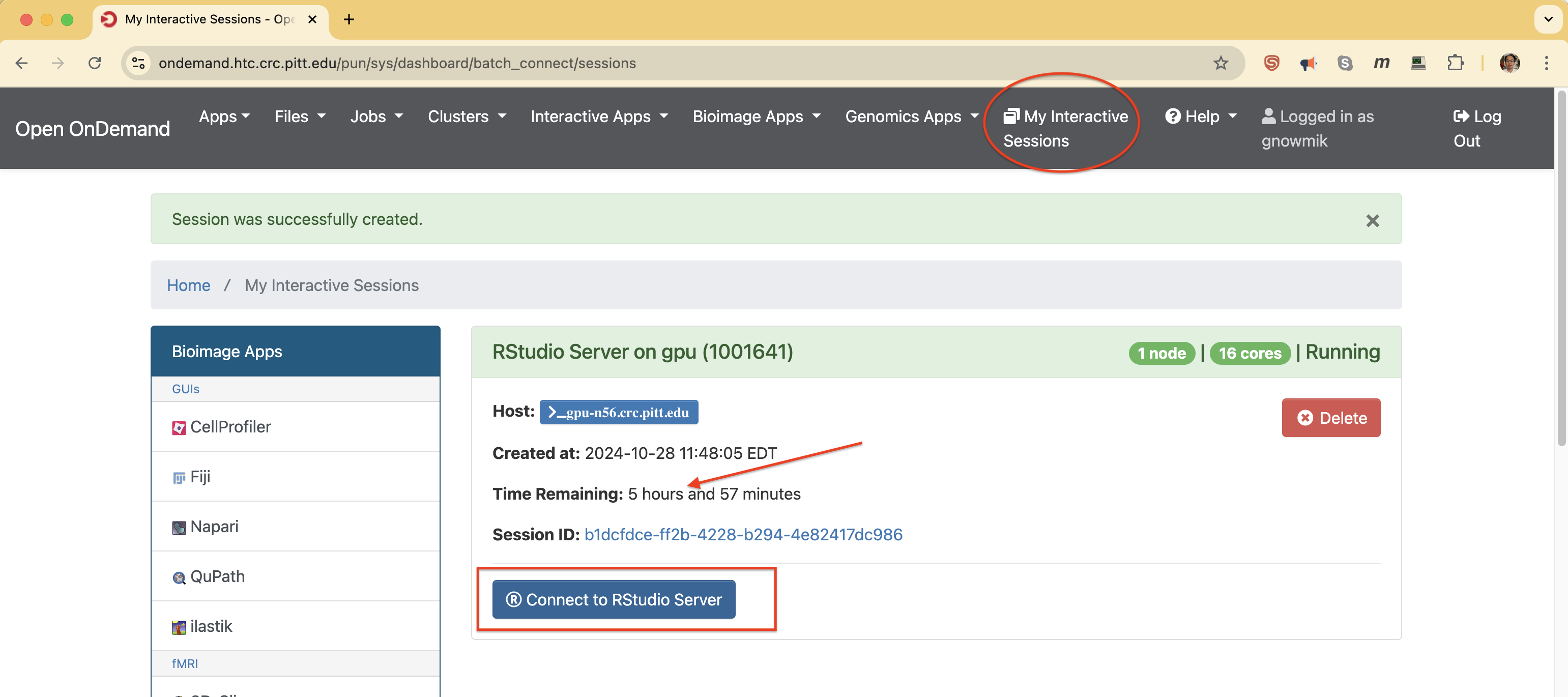
Clicking Connect to RStudio Server opens your session in a new tab:
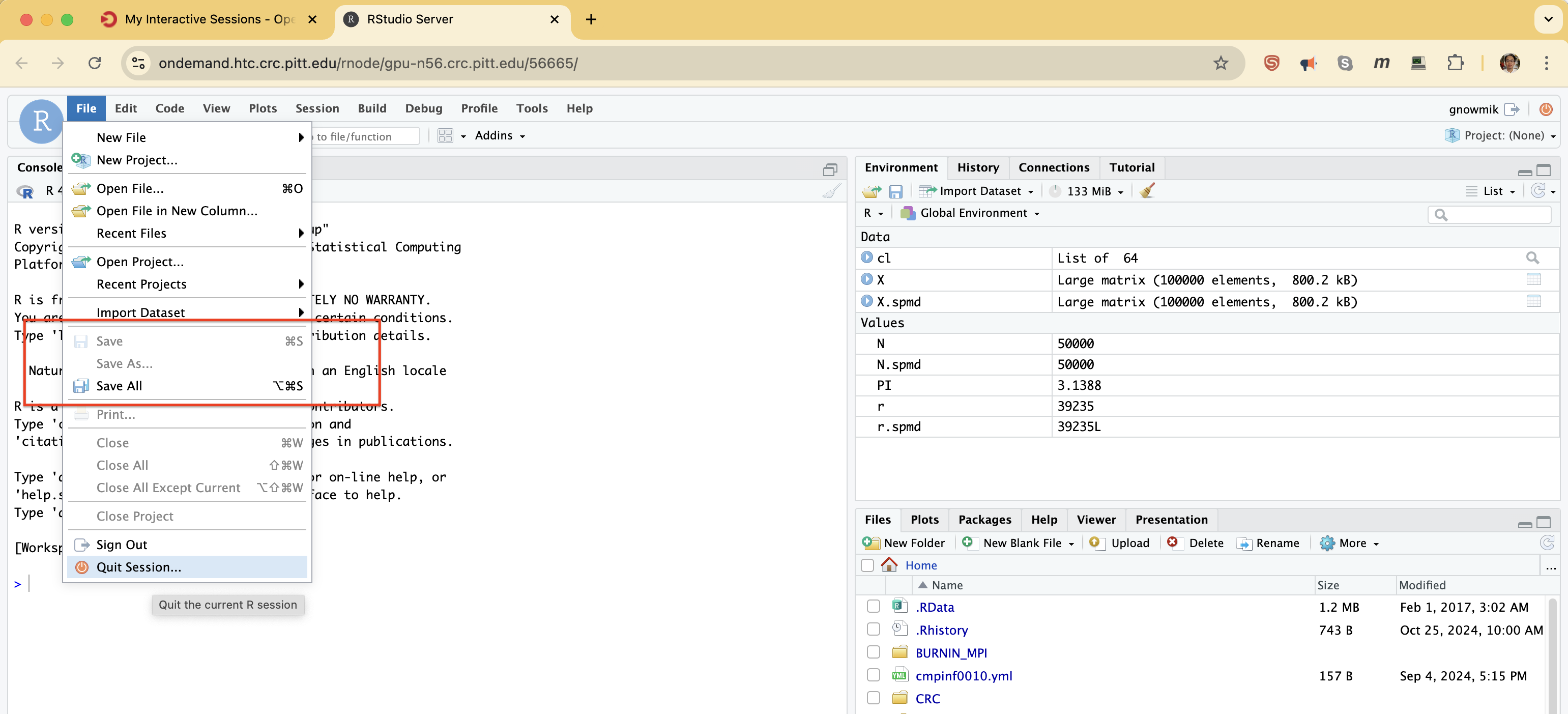
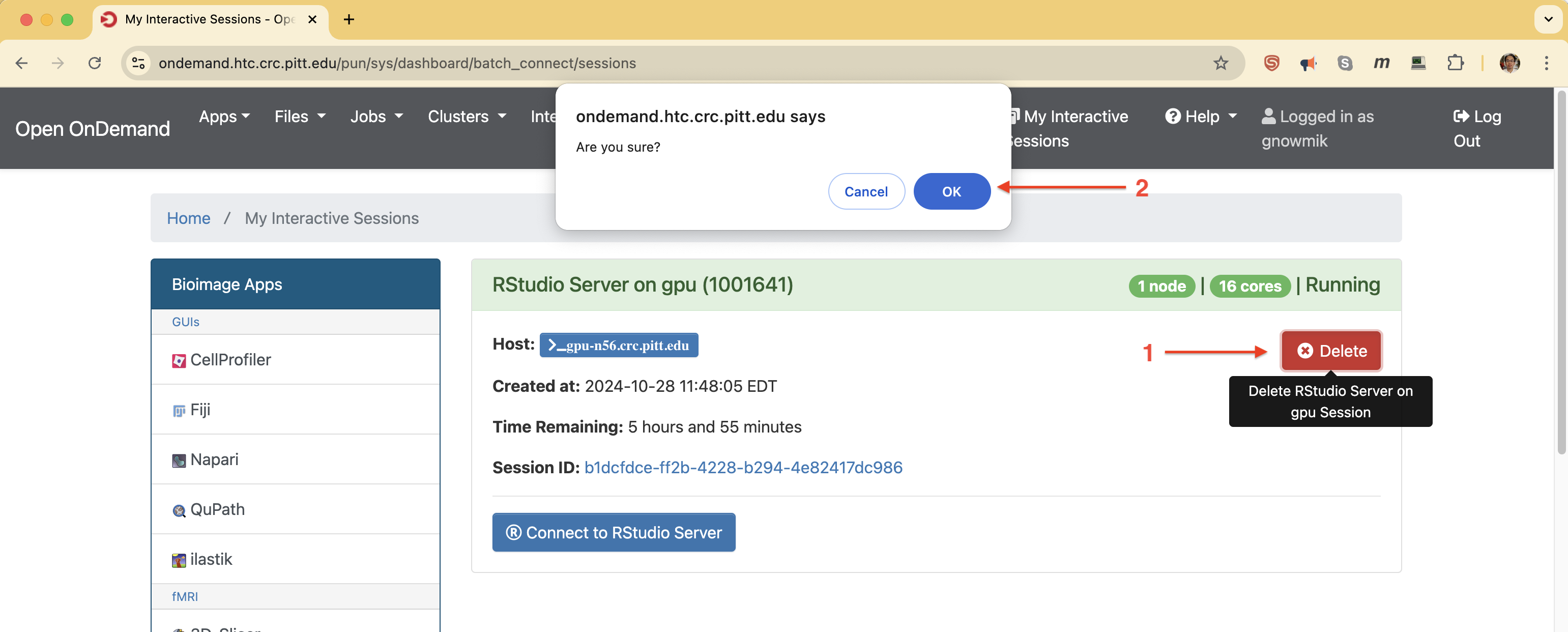
When you're done, terminate the session to return the compute resource to the community pool and stop the charge against your allocation: click Delete, then confirm with OK. Save your work to the filesystem first.
My Interactive Sessions now shows the session is gone; any other OnDemand jobs you haven't deleted remain listed.
Appendix: Errors
Sometimes a job submitted through Open OnDemand stays in the Queued state for a long time. Two common causes and how to address them are below.
Error 1: queued due to lack of resources
In the job specification below, I request 4× A100 80 GB GPUs on the a100_nvlink partition. As shown on the
GPU cluster page, this resource is limited — CRCD has only two a100_nvlink nodes, each
with eight of these GPUs.
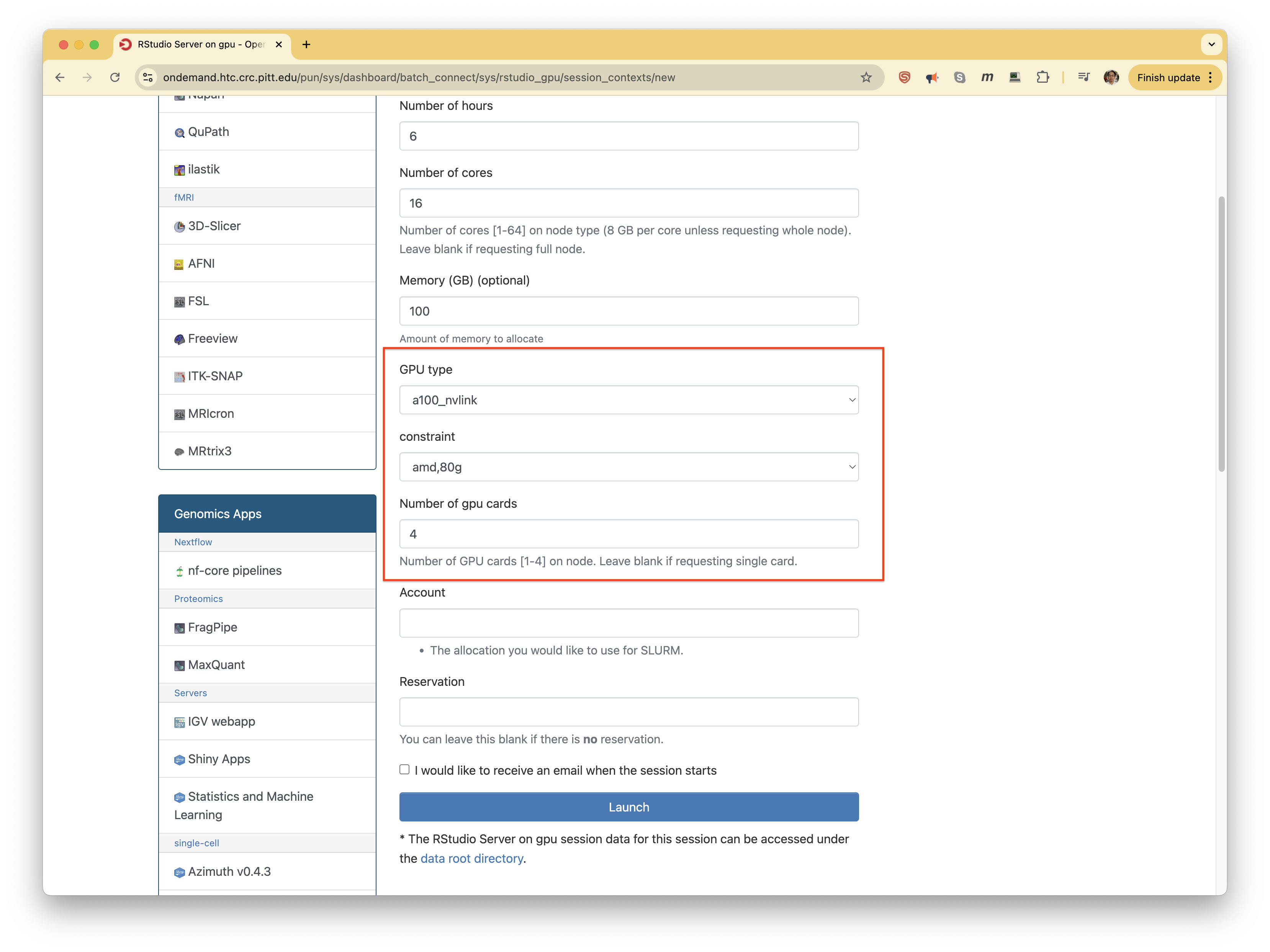
When I Launch this job, it stays Queued for more than five minutes, whereas my jobs typically reach Running within a couple of minutes.
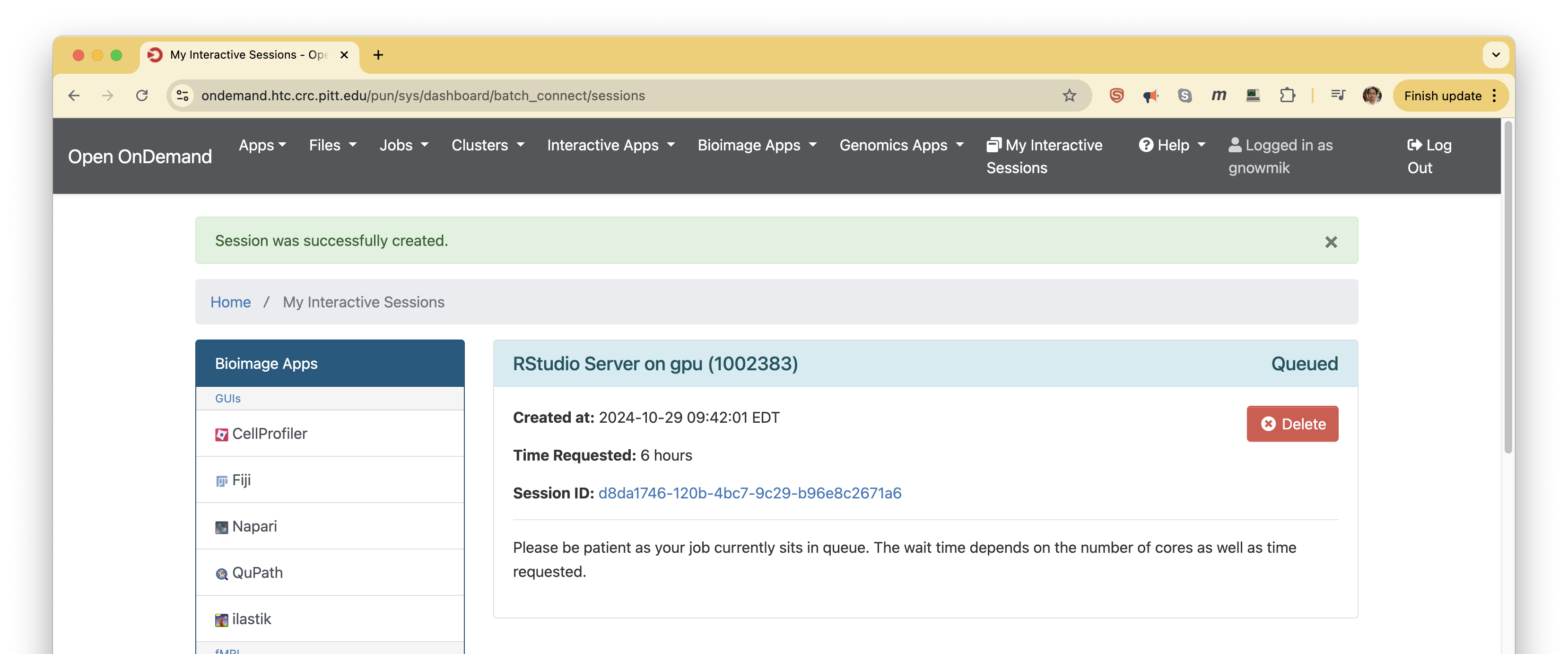
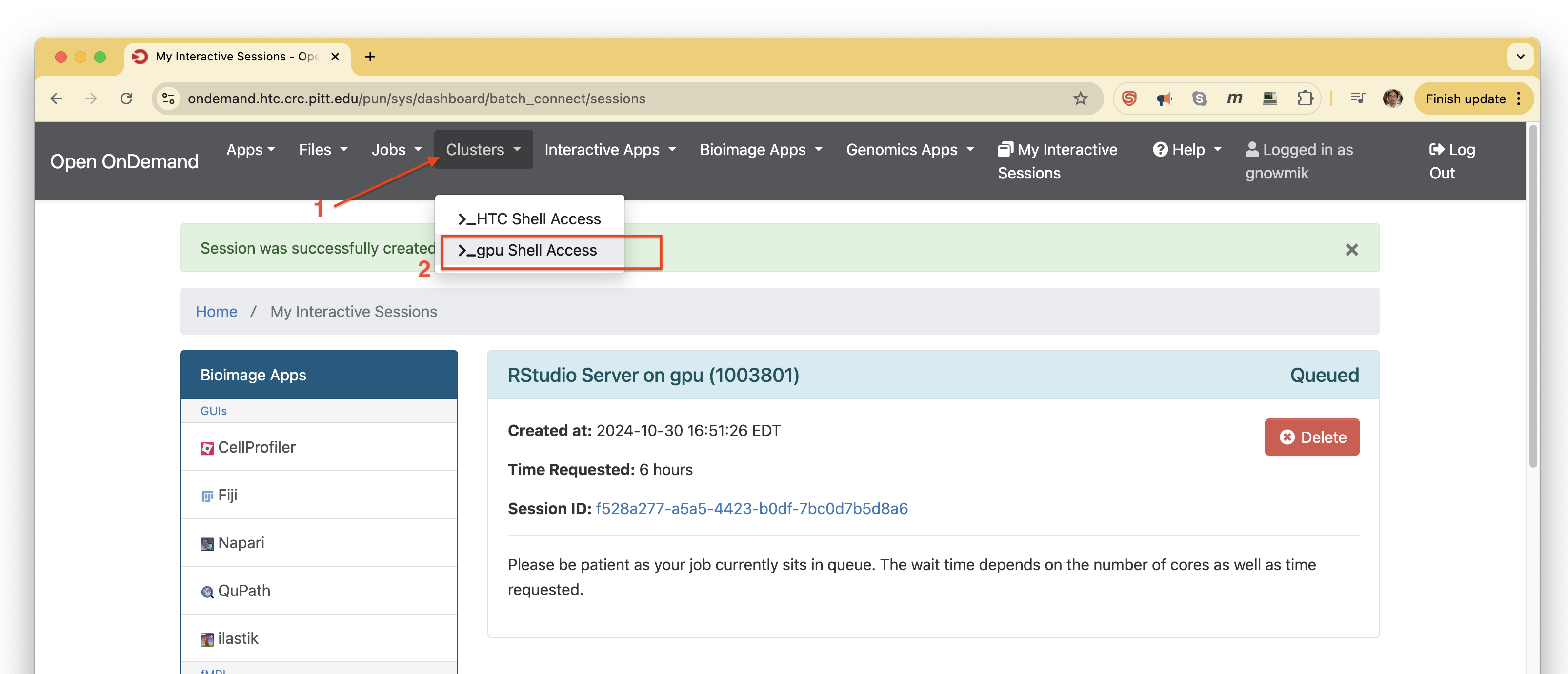
The job panel doesn't show the Slurm detail needed for troubleshooting, so open an SSH terminal to the cluster: click the Clusters menu and select one of the Shell Access options.
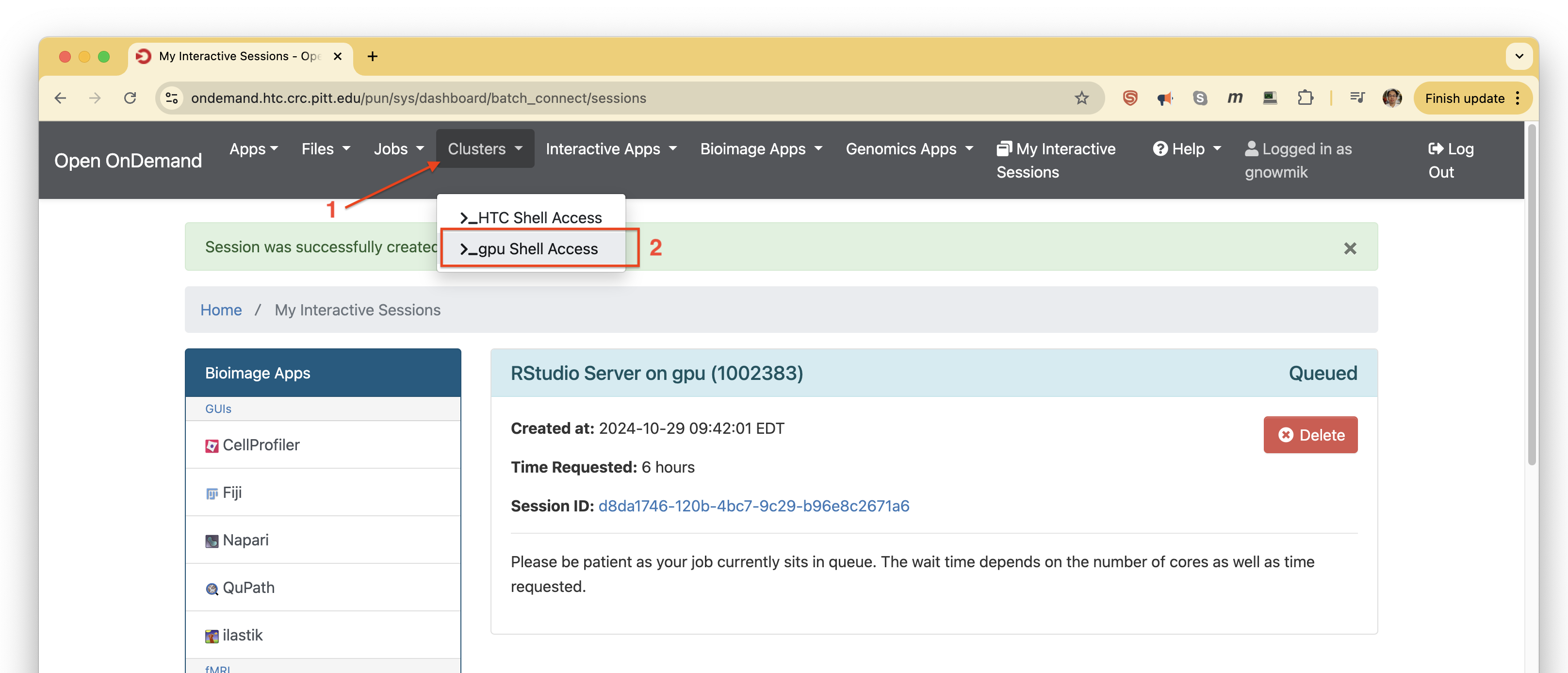
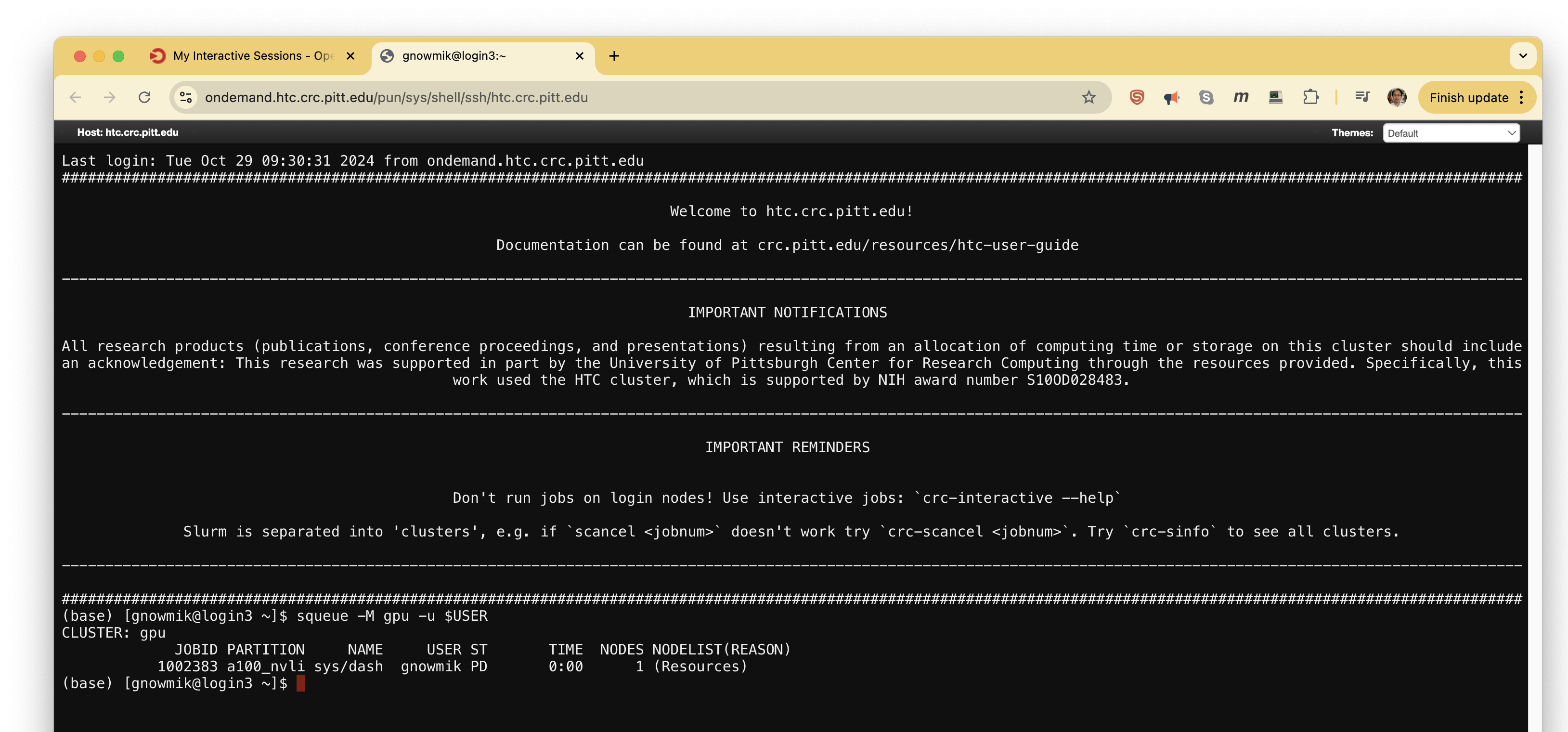
In the terminal that opens, run:
squeue -M gpu -u $USER
Possible solution
The squeue output shows the job in the PD (pending) state with reason (Resources), meaning Slurm can't find
resources matching the request; the job stays pending until other jobs using those resources finish.
One fix is to target a different, more available resource. Below, I changed the GPU type from A100 80 GB to A100 40 GB.
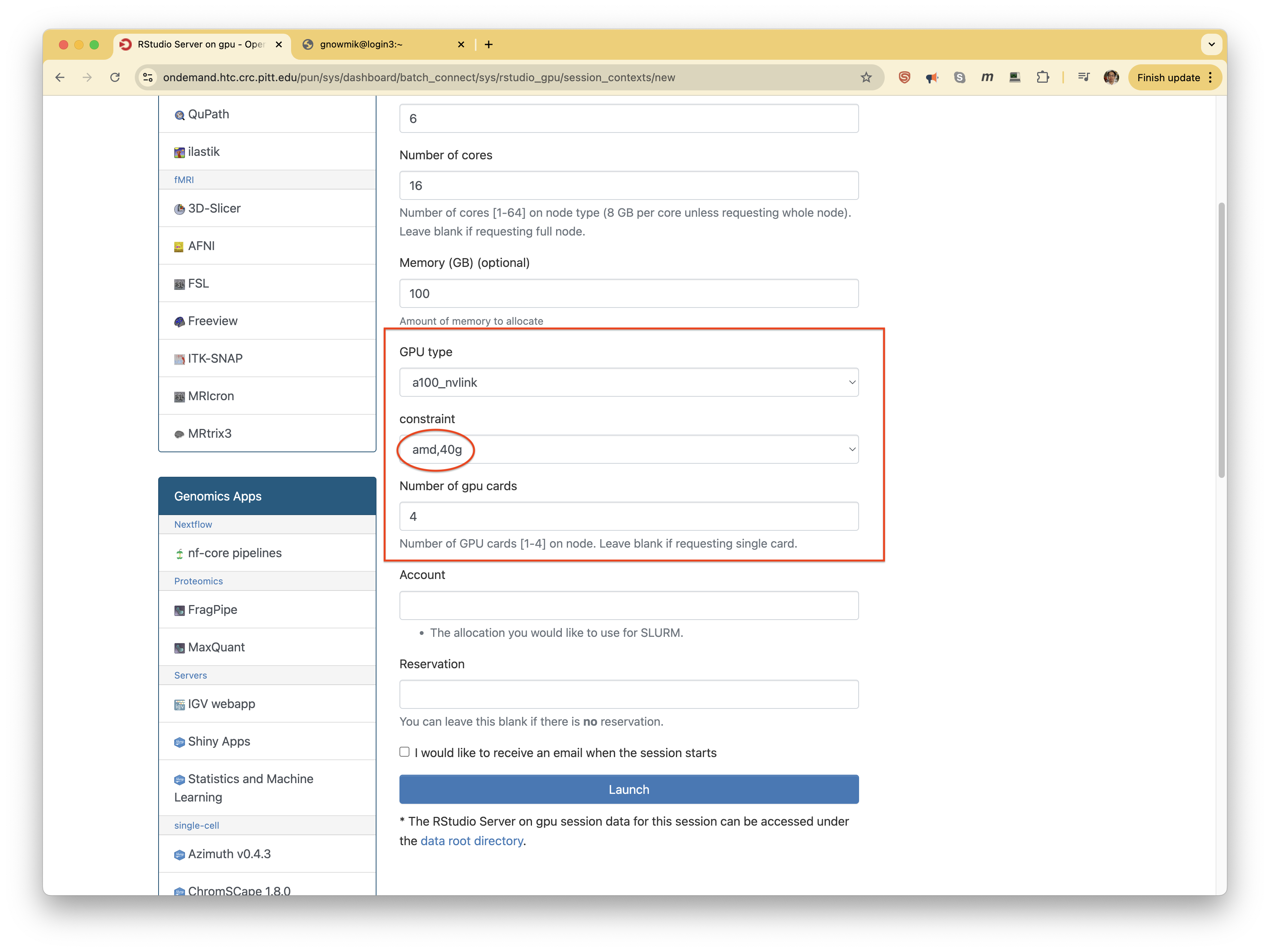
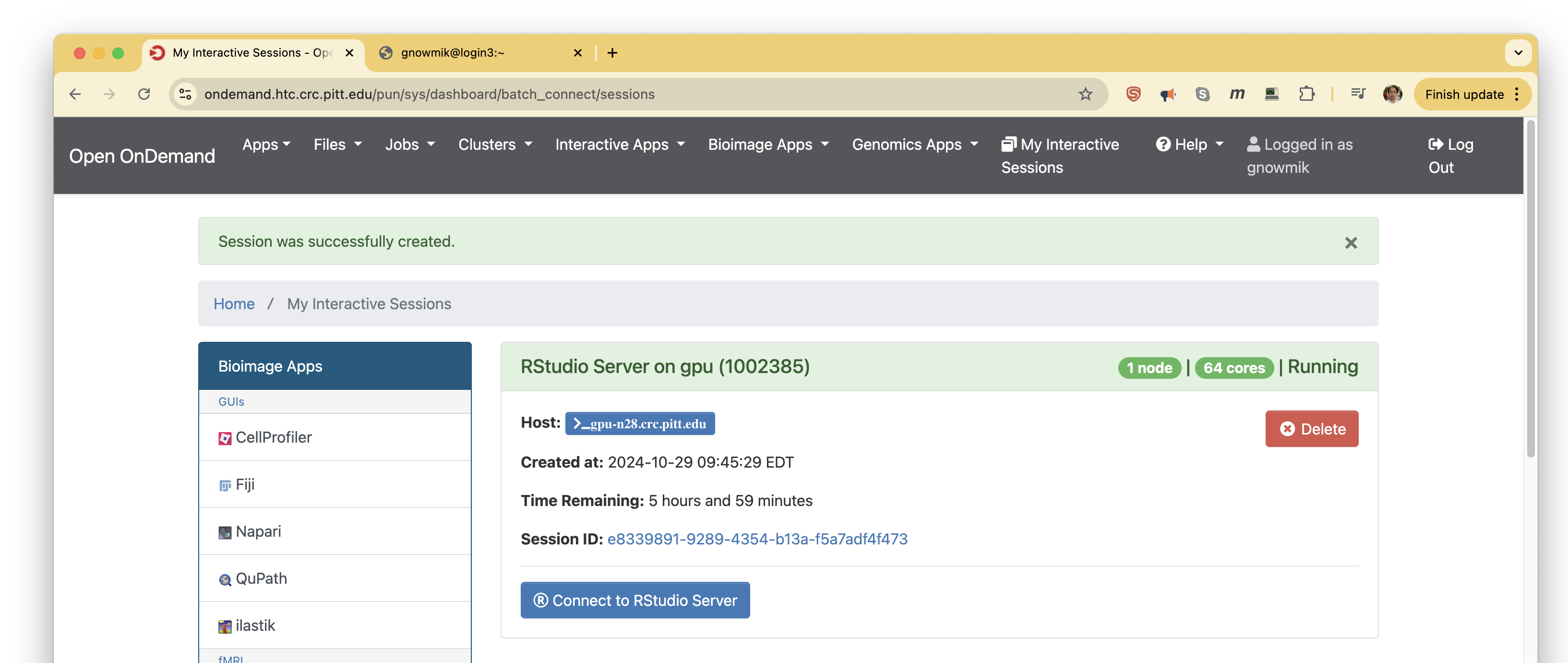
Slurm then found the resources and the job entered Running, allocating 4 GPUs on node gpu-n28.crc.pitt.edu with 64
CPU cores.
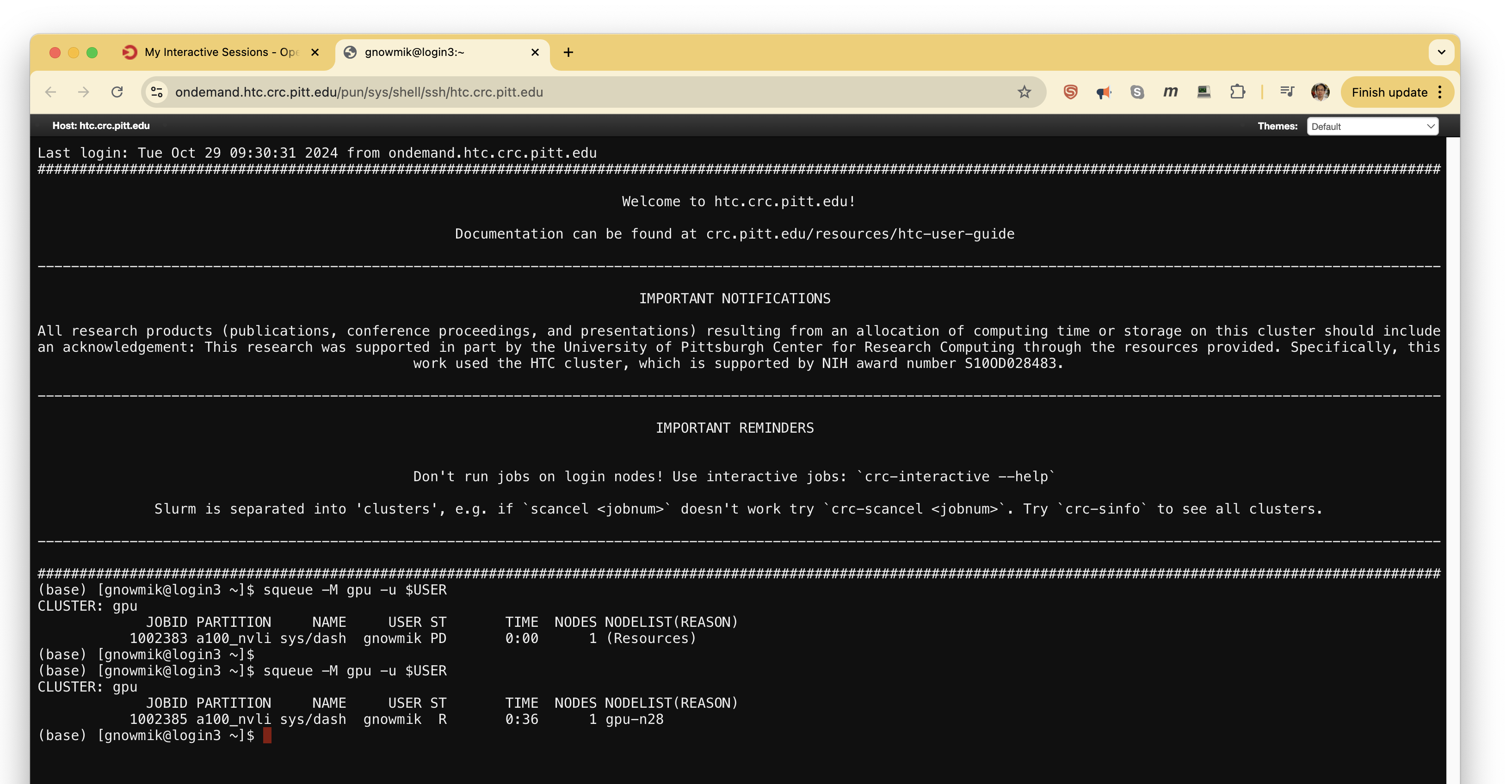
Running squeue again shows output matching the job panel.
Error 2: queued due to no allocation
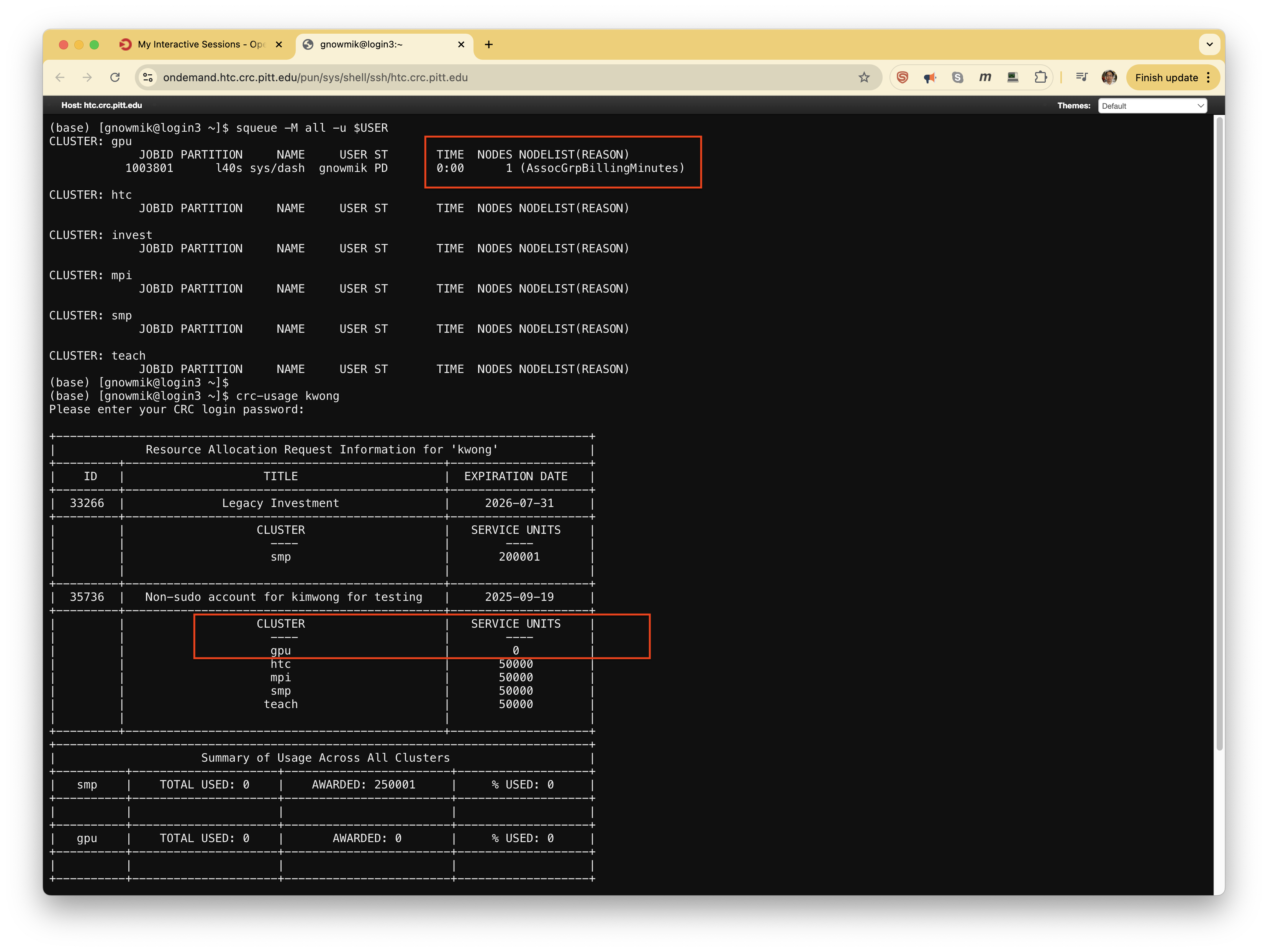
This error occurs when you have no allocation on a cluster, or the allocation has expired. To reproduce it for this guide, I zeroed out my GPU-cluster allocation (visible in the terminal below) and requested one L40S GPU.
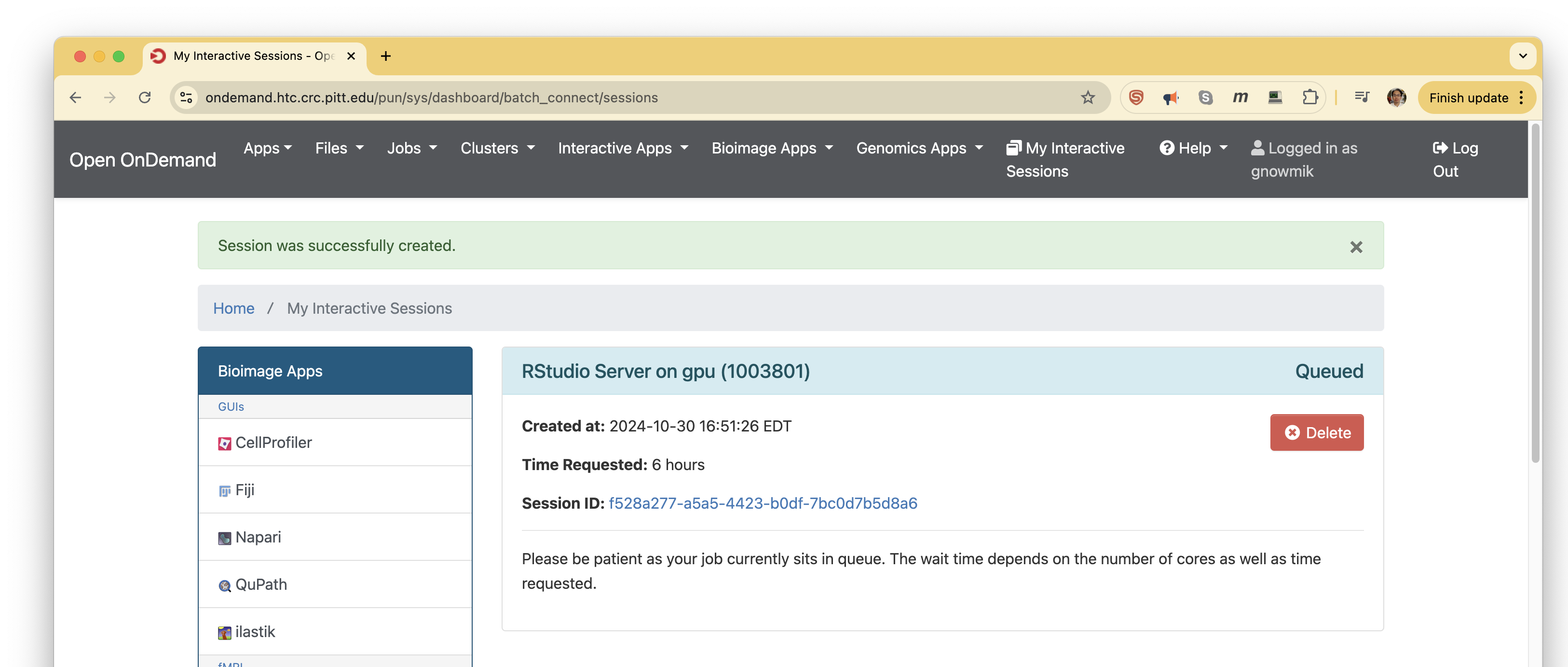
The launched job stays Queued for several minutes.
To debug, open a terminal from the Clusters menu via Shell Access.
Run squeue -M all -u $USER to show your jobs on every cluster. The pending reason is AssocGrpBillingMinutes, meaning
the job has no SUs to draw from — either the allocation expired or you have none on the requested cluster (here, the
latter).
Possible solution
You need an allocation on the requested cluster. Submit a Service Request Form, choosing the One-Time Startup Allocation if this is your first request for computing time, or the Annual Project Allocation for a renewal.