Common Problems
In this section we list a series of common problems that CRCD users may encounter, with possible solutions. They are grouped by theme below; use the table of contents on the right to jump to a topic.
Logging in and connecting
I can't log in — my session hangs or is terminated
Logging in to a login node is very slow, hangs without ever giving me a prompt, or disconnects before the login completes. It can look like any of these.
The connection is dropped right after the login banner:
abc123@htc.crc.pitt.edu's password:
###############################################################
                Welcome to htc.crc.pitt.edu!
    Documentation can be found at https://crc-pages.pitt.edu/user-manual/
---------------------------------------------------------------
                     IMPORTANT REMINDERS
 Don't run jobs on login nodes! Use interactive jobs: `crc-interactive --help`
---------------------------------------------------------------
###############################################################
Last login: Thu Sep 10 13:17:42 2026 from 136.142.28.142
Your connection to the remote server has been terminated.
Or the session hangs after the banner with no prompt at all, and pressing Ctrl+C eventually drops you to a prompt. Remote editors are affected too — VS Code Remote-SSH may fail to connect or hang while "Setting up SSH host".
This is not a VPN or host-key problem. If you can reach the node but can't get a usable shell, read on.
You are almost certainly over your own per-user limit on that login node, because of processes you left running there. The fix is to get those processes killed.
1. Try another login node or cluster. The limits are enforced per node, so a different one may still let you in:
ssh <pittID>@h2p.crc.pitt.edu    # SMP, MPI, GPU clusters
ssh <pittID>@htc.crc.pitt.edu    # HTC cluster
You can also try a shell through the web portal — in Open OnDemand, use Clusters → HTC / gpu / smp Shell Access.
2. Find your processes. Once you have any prompt, list what you are running on that node:
[abc123@login3 ~]$ top -u $USER
PID     USER    PR  NI    VIRT    RES    SHR S  %CPU  %MEM     TIME+ COMMAND
1388307 abc123  20   0 6083400   5.6g  15616 D   0.0   2.2   5:57.53 R
1387616 abc123  20   0   27744  15220  10752 S   0.0   0.0   1:02.81 systemd
A single R, Python, or MATLAB process holding several GB is enough to lock you out. Also
look for stray conda processes and leftover VS Code server processes (code-*).
3. Kill them. Use the PID from top, or kill by name:
kill <PID>
pkill -u $USER -f R          # replace R with the offending command
Be deliberate — pkill matching too broadly can kill your own shell.
4. If you cannot get in at all, open a help ticket and ask us to kill your processes on the login node. Say which cluster and login node you were using (for example "login3 on HTC"). This is a routine request and quick to action.
Prevention
Do the work where it belongs. Start an
interactive session with crc-interactive for hands-on
work, or submit a batch job. If you use VS Code against the
clusters, follow VS Code — by default its server and language
extensions run on the login node, which is a common way to hit the limit without
realizing it.
Login nodes are a shared entry point, not a place to compute. To keep them responsive, per-user limits are enforced with cgroups: currently 1 core and 8 GB of memory per user, applied across all of your processes on that login node. There are two thresholds: 5 GB is the soft limit, and 8 GB is the hard limit. In general, once a user's memory usage hits the 5 GB soft limit, symptoms will start to appear. When the node's resources are exhausted, you may be unable to log in until usage drops.
That last part is the whole explanation. Logging in is itself work: SSH has to start a shell and several small processes for you. If your existing processes on that node have already consumed your 1 core and 8 GB, there is nothing left to start a new session with — so the login hangs waiting, or is terminated outright. You are not locked out by other users or by us; you are locked out by your own earlier processes.
Three things make this easy to hit by accident:
- The limit is collective. It is not 8 GB per process but 8 GB for everything you are running on that node at once. One R or Python session loading a large dataset can consume it alone.
- Processes outlive your session. A dropped connection, a
tmuxsession, anohupcommand, or a remote-editor server can keep running for days. You can be locked out by something you started last week. - Remote editors are silent offenders. VS Code Remote-SSH starts a server plus language
and extension processes on the login node, and those can spawn further
condaor interpreter processes without any obvious sign in the editor.
Note also that resource-intensive processes on the login nodes may be killed at any time — so a long computation started on a login node is likely to die partway through even if it does not lock you out first.
For what login nodes are and are not for, see Login Nodes; for the limits themselves, see the Job Scheduling Policy.
SSH warning: remote host identification has changed
After a scheduled quarterly maintenance, ssh attempts from your laptop to h2p.crc.pitt.edu, htc.crc.pitt.edu,
or another CRCD remote server can fail with the following warning message below.
Last login: Fri Aug 22 08:48:12 on ttys009
kimwong@M1-Max ~ % ssh login3.crc.pitt.edu
@@@@@@@@@@@@@@@@@@@@@@@@@@@@@@@@@@@@@@@@@@@@@@@@@@@@@@@@@@@
@    WARNING: REMOTE HOST IDENTIFICATION HAS CHANGED!     @
@@@@@@@@@@@@@@@@@@@@@@@@@@@@@@@@@@@@@@@@@@@@@@@@@@@@@@@@@@@
IT IS POSSIBLE THAT SOMEONE IS DOING SOMETHING NASTY!
Someone could be eavesdropping on you right now (man-in-the-middle attack)!
It is also possible that a host key has just been changed.
The fingerprint for the ED25519 key sent by the remote host is
SHA256:J0awPWHGaPS37Cc5OZpR/ITGrHmmRIJYj6WfKbD1N9g.
Please contact your system administrator.
Add correct host key in /Users/kimwong/.ssh/known_hosts to get rid of this message.
Offending ED25519 key in /Users/kimwong/.ssh/known_hosts:30
Host key for login3.crc.pitt.edu has changed and you have requested strict checking.
Host key verification failed.
kimwong@M1-Max ~ %
This warning message indicates that changes to the remote server (e.g., an IP address change) have invalidated the
remote server host key, which is stored in a file called .ssh/known_hosts. The message also suggests a possible fix
(highlighted in yellow).
Last login: Fri Aug 22 08:48:12 on ttys009
kimwong@M1-Max ~ % ssh login3.crc.pitt.edu
@@@@@@@@@@@@@@@@@@@@@@@@@@@@@@@@@@@@@@@@@@@@@@@@@@@@@@@@@@@
@    WARNING: REMOTE HOST IDENTIFICATION HAS CHANGED!     @
@@@@@@@@@@@@@@@@@@@@@@@@@@@@@@@@@@@@@@@@@@@@@@@@@@@@@@@@@@@
IT IS POSSIBLE THAT SOMEONE IS DOING SOMETHING NASTY!
Someone could be eavesdropping on you right now (man-in-the-middle attack)!
It is also possible that a host key has just been changed.
The fingerprint for the ED25519 key sent by the remote host is
SHA256:J0awPWHGaPS37Cc5OZpR/ITGrHmmRIJYj6WfKbD1N9g.
Please contact your system administrator.
Add correct host key in /Users/kimwong/.ssh/known_hosts to get rid of this message.
Offending ED25519 key in /Users/kimwong/.ssh/known_hosts:30
Host key for login3.crc.pitt.edu has changed and you have requested strict checking.
Host key verification failed.
kimwong@M1-Max ~ %
One fix is to edit the file /Users/kimwong/.ssh/known_hosts and delete line 30 which has the offending "ED25519 key".
The :30 syntax in the second highlighted sentence above indicates line 30 of the file known_hosts.
An alternative fix is to issue the command
ssh-keygen -R <hostname>
<hostname> is the hostname of the computer you are trying to connect to. This will remove all keys belonging
to the specified <hostname> and update the known_hosts file automatically. The above warning message also shows
the <hostname> (highlighted in green and underlined) that failed the host key verification.
When you first log into a remote server, you are warned that the authenticity of a host cannot be verified and if you wish to continue connecting.
kimwong@M1-Max ~ % ssh login3.crc.pitt.edu
The authenticity of host 'login3.crc.pitt.edu (136.142.28.148)' can't be established.
ED25519 key fingerprint is SHA256:J0awPWHGaPS37Cc5OZpR/ITGrHmmRIJYj6WfKbD1N9g.
This host key is known by the following other names/addresses:
    ~/.ssh/known_hosts:27: login2.crc.pitt.edu
    ~/.ssh/known_hosts:31: h2p.crc.pitt.edu
    ~/.ssh/known_hosts:32: login1.crc.pitt.edu
Are you sure you want to continue connecting (yes/no/[fingerprint])?
If you answer yes, you will see the following message:
Are you sure you want to continue connecting (yes/no/[fingerprint])? yes
Warning: Permanently added 'login3.crc.pitt.edu' (ED25519) to the list of known hosts.
Connection closed by 136.142.28.148 port 22
.ssh/known_hosts file. Now the next time you ssh to the
remote server, the key on the remote server is compared against the one stored in .ssh/known_hosts. If the
keys match, you continue connecting to the server. If the keys don't match, you see the ominous warning message.
This situation happens, for example, when we need to replace an old server with a new more performant one and we
keep the same hostname. The new host key will not match with the one stored in your .ssh/known_hosts file.
I can't ssh into an allocated compute node
I have a node allocated to me, but hopping to it from the login node asks for a password I can't get past, or refuses the connection outright.
[abc123@login1 ~]$ salloc -M htc --nodes=1 --time=02:00:00
salloc: Granted job allocation 10721347
salloc: Nodes htc-n72 are ready for job
[abc123@login1 ~]$ ssh htc-n72
abc123@htc-n72's password:
Or:
[abc123@login1 ~]$ ssh htc-n72
Permission denied (publickey,gssapi-keyex,gssapi-with-mic,password).
The same failure shows up indirectly: ssh -X to run a GUI application on your compute
node fails, or an MPI job dies early with connection errors, hangs, or timeouts while
starting processes on the other nodes.
Hops between cluster nodes need passwordless SSH within the cluster — a key pair that lives in your CRCD home directory. This is separate from any key you set up on your laptop for logging in.
1. Confirm the node is actually yours. You can only reach a compute node while you have a job allocated on it:
squeue -M all -u $USER
The NODELIST column must show the node you are trying to reach. If it does not, no key
will help — request an allocation first.
2. Create an in-cluster key pair. On a login node, accept the default path and leave the
passphrase empty (an automated mpirun or ssh -X hop has nobody to type one):
ssh-keygen -t ed25519
3. Authorize it for yourself:
cat ~/.ssh/id_ed25519.pub >> ~/.ssh/authorized_keys
chmod 700 ~/.ssh
chmod 600 ~/.ssh/authorized_keys
The permissions matter — SSH silently refuses keys in world- or group-writable files, which is a common reason this appears not to work.
4. Try the hop again. The first connection asks you to confirm the node's authenticity;
answer yes:
[abc123@login1 ~]$ ssh htc-n72
The authenticity of host 'htc-n72 (10.201.8.72)' can't be established.
Are you sure you want to continue connecting (yes/no/[fingerprint])? yes
[abc123@htc-n72 ~]$
You may not need the hop at all
For an interactive shell on a compute node, crc-interactive puts you there directly —
no ssh needed. The hop matters when you already hold an allocation (via salloc),
want ssh -X for a GUI application, or run software that launches its own processes
across nodes. See Interactive Jobs.
For the complete walkthrough, including laptop-to-login-node keys, SSH agents, and config shortcuts, see Passwordless SSH.
Slurm decides which nodes you may reach — a node is open to you while you hold an
allocation on it — but the hop itself is still an ordinary SSH connection between two
machines, and it has to authenticate. With no key in place, sshd falls back to asking for
a password. That is merely annoying when you are typing it yourself; it is fatal when an MPI
launcher is trying to start processes on twelve nodes at once, because there is no prompt for
it to answer. Hence the hang or timeout early in a parallel run.
The convenient part is that your home directory is shared across the login and compute
nodes. One key pair in ~/.ssh is therefore visible everywhere, so authorizing your own
public key once makes every in-cluster hop work — you never repeat this per node.
Two clarifications worth keeping straight:
- Two different keys, two different jobs. A key on your laptop saves you typing your
Pitt password when logging in to
h2porhtc. A key in your CRCD home directory enables node-to-node hops inside the cluster. Setting up the first does nothing for the second. - An empty passphrase is deliberate here. It is the only way unattended launchers can
use the key. The key never leaves the cluster and only grants access to your own account,
so its scope is limited — but treat your
~/.sshdirectory accordingly.
Red Hat Insights prompt upon login
Upon successful login, I see the following prompt. Do I need to do anything?
kimwong@M1-Max ~ % ssh h2p.crc.pitt.edu
Register this system with Red Hat Insights: rhc connect

Example:
# rhc connect --activation-key <key> --organization <org>

The rhc client and Red Hat Insights will enable analytics and additional
management capabilities on your system.
View your connected systems at https://console.redhat.com/insights

You can learn more about how to register your system
using rhc at https://red.ht/registration
Last login: Mon Aug 25 15:58:56 2025 from 10.25.193.128
[kimwong@login1.crc.pitt.edu ~]$
Ignore. This message is intended for Systems Administrators. We will leave this FAQ up until we find time to disable the message.
It's advertisement for AI. You can read the promo if you are interested.
My jobs are not running
My job is stuck in the PD (pending) state
I submitted my job, but squeue shows it as PD instead of running. Why hasn't it started?
List your jobs across all clusters and look at the NODELIST(REASON) column:
[kimwong@login1.crc.pitt.edu ~]$ squeue -M all -u $USER
CLUSTER: htc
             JOBID PARTITION     NAME     USER ST       TIME  NODES NODELIST(REASON)
          10845112       htc   my-job  kimwong PD       0:00      1 (Priority)
          10845113       htc   my-job  kimwong PD       0:00      1 (Resources)
          10845114       htc    align  kimwong PD       0:00      1 (AssocGrpBillingMinutes)
          10845115       htc    step2  kimwong PD       0:00      1 (Dependency)
          10845116       htc    step3  kimwong PD       0:00      1 (DependencyNeverSatisfied)
The reason in parentheses tells you what the job is waiting for. The five below account for most pending jobs.
Match the reason from the NODELIST(REASON) column to the row below.
1. AssocGrpBillingMinutes — your group's allocation is used up or expired.
This one will not resolve on its own. Check your group's usage, then request more:
crc-usage
Submit a new Resource Allocation Request. See Service Units for how usage is charged.
2. Priority — higher-priority jobs are ahead of yours.
Nothing is wrong; wait. Choosing the shortest QoS that fits your job helps it start sooner,
since shorter tiers carry higher priority. See the
Job Scheduling Policy for how priority is computed.
3. Resources — the cluster is busy and nothing is free yet.
Wait; it starts when resources free up. If you wait often, check whether your jobs actually
use what they request:
crc-seff <jobid>
Right-sizing future requests (fewer cores, less memory, or a shorter walltime) gets jobs scheduled sooner.
4. Dependency — waiting on another job you marked with --dependency.
Expected behavior. Wait for the upstream job to finish.
5. DependencyNeverSatisfied — a job it depends on failed.
This job will never run and will sit in the queue indefinitely.
Cancel it, fix the upstream
job, and resubmit.
Other reasons
Reasons such as QOSMaxJobsPerUserLimit, MaxCpuPerAccount, MaxMemoryPerAccount,
and JobArrayTaskLimit mean you have hit a concurrent-job or per-group resource cap.
The full table is on Job Limits & QoS.
A pending job is not a broken job. When the cluster is busy, jobs wait in the queue and
start in order of a computed priority, so Priority and Resources simply mean your job
is in line. Limits are enforced per group (account), not per user — everyone in your
group draws from the same pool, so a colleague's running jobs can hold the cap that keeps
yours waiting.
The five reasons fall into three different situations:
- Waiting its turn (
Priority,Resources) — resolves by itself. - Waiting on you (
Dependency) — resolves when the upstream job finishes. - Stuck (
AssocGrpBillingMinutes,DependencyNeverSatisfied) — requires action. Neither will ever clear on its own: the first needs a new allocation, the second needs the job cancelled.
That last group is the important distinction. A job pending on
AssocGrpBillingMinutes or DependencyNeverSatisfied can sit in PD forever while you
assume it is merely queued, so it is worth checking the reason rather than waiting.
For the complete list of pending reasons, the QoS walltime tiers, and the per-group resource caps, see Job Limits & QoS.
My interactive session never gets a compute node
I asked for an interactive session from the terminal, but it just sits there. I never get a shell prompt on a compute node.
[kimwong@login1.crc.pitt.edu ~]$ crc-interactive -s
srun: job 10845120 queued and waiting for resources
The command hangs at that message. Nothing else happens, and pressing Ctrl+C gets me back to the login node with no session.
Your request is a normal Slurm job sitting in the queue, so start by finding out what it is
waiting for. Leave the crc-interactive command running and open a second terminal:
[kimwong@login1.crc.pitt.edu ~]$ squeue -M all -u $USER
Read the NODELIST(REASON) column and use the
pending-reason guide above. In particular, if
the reason is AssocGrpBillingMinutes, your group's allocation is exhausted and the session
will never start — no amount of waiting will help.
If the reason is Priority or Resources, the cluster is busy and the practical fix is to
ask for less. An interactive request has to be satisfied right now, so a smaller, shorter
request is far easier for the scheduler to place:
- Shorten the walltime. An hour beats a day; short jobs carry higher priority and backfill into gaps.
- Request fewer cores and less memory.
- Drop specialized hardware if you can. A GPU, high-memory, or specific-model request narrows the pool of nodes that can run you.
Check what you are actually asking for before you queue again — -z prints the equivalent
srun command without running it, and --help lists every flag:
crc-interactive -s -z
crc-interactive --help
Don't keep cancelling and resubmitting
Each Ctrl+C and resubmit throws away the priority your request had accrued and puts
you at the back of the line. If the reason is Priority or Resources, waiting is
faster than retrying.
Two alternatives if you need to get working now:
- Use a web portal instead. Open OnDemand and the Viz portal launch interactive sessions from the browser, and are the easiest route if you are not attached to the terminal.
- Submit a batch job. If the work does not truly need your input, a batch job queues and runs without you sitting at the terminal.
crc-interactive builds a Slurm request and hands it to srun, which then blocks —
it holds your terminal until the scheduler can place the job. A batch job submitted with
sbatch returns immediately and waits in the queue out of sight; an interactive request
waits in the same queue, under the same priority and the same per-group caps, but you are
watching it happen. The queued and waiting for resources message is Slurm telling you it
has accepted the job and is looking for somewhere to run it.
This is why interactive sessions can feel slower to start than batch jobs even though nothing is wrong. It is also why the size of the request matters so much: the scheduler backfills small, short jobs into gaps between larger reservations, so a one-core, one-hour request often starts in seconds while a 16-core, one-day request on a busy cluster can wait a long time.
Two consequences worth knowing:
- The session is tied to your terminal. Because
srunholds the connection, closing the terminal or dropping your SSH connection cancels the request. For long waits or long sessions, run it insidetmuxso it survives a disconnect — see Persisting Sessions. - Interrupting costs you your place. Ctrl+C cancels the job outright rather than backgrounding it, so the accrued Age priority is lost.
For the full picture on interactive sessions, including salloc, srun, and X11
forwarding for GUI applications, see Interactive Jobs.
My OnDemand session stays queued and shows no Connect button
I launched Jupyter (or RStudio) from Open OnDemand, but the session card in My Interactive Sessions sits at Queued and never gives me a Connect to Jupyter or Connect to RStudio Server button.
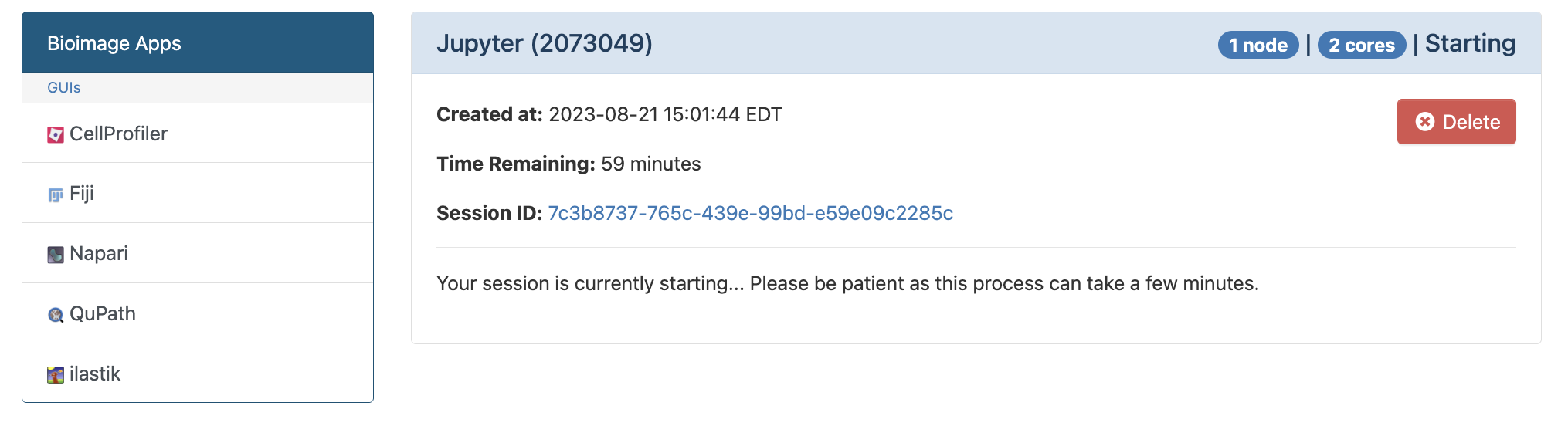
The button only appears once the card turns to Running.
An OnDemand session is a Slurm job, so this is the same queue wait as a terminal request — the web interface just hides the queue from you. To see why it is waiting, open a shell from the OnDemand menu bar: Clusters → HTC Shell Access (or gpu / smp, matching the cluster you submitted to). Then check the reason:
squeue -M all -u $USER
Then use the pending-reason guide above. The common outcomes:
PriorityorResources— the cluster is busy. Leave the page open; the card flips to Running on its own and the Connect button appears. You can safely close the browser tab and come back to My Interactive Sessions later.AssocGrpBillingMinutes— your group's allocation is exhausted or expired. The session will never start. Checkcrc-usage. If you belong to more than one group, relaunch and pick a different Account on the submission form.
If the wait is due to a busy cluster, delete the session and relaunch with a smaller request. On the submission form:
- Lower the number of hours. The Jupyter form defaults to 1 hour for a reason — shorter requests backfill into gaps and start sooner.
- Lower the number of cores.
- Reconsider the GPU type. Scarce cards have much smaller per-group caps than the common ones, so an in-demand type can queue far longer. See Job Limits & QoS for the per-partition GPU caps and the GPU cluster page for what is currently available.
Check the session logs
Click My Interactive Sessions to open a file explorer with your session's logs and scripts. If a session goes to Running but still never connects, the logs usually say why — and they are what we will ask for if you open a support ticket.
Still stuck? A session that never leaves Queued with no limit-related reason is worth reporting — include the job ID and the session logs.
Launching an OnDemand app submits a Slurm job on your behalf. The form fields you filled in
(hours, cores, GPU type, account) become the resource request, and the job then waits in the
same queue, under the same priority and per-group caps, as anything submitted with sbatch
or srun.
The session card's state mirrors the Slurm job state: Queued is Slurm's PD (pending),
and Running means the job has been allocated a compute node. OnDemand only renders the
Connect button once the app is actually up on that node — which is why a missing button is
almost never a portal problem. It means the job has not started yet.
This is the important thing to understand about the web portals: they make Slurm easier to use, not faster to schedule. Switching from the terminal to OnDemand does not move you up the queue.
Two behaviors specific to OnDemand:
- Closing the tab does not cancel the job. Unlike a terminal
srun, the request survives losing your browser or your connection. Return to My Interactive Sessions to reconnect. The job runs until its walltime expires or you click the red Delete button. - A running session costs Service Units for its whole walltime, used or not. Asking for 8 hours "just in case" both lengthens your queue wait and charges your group for 8 hours. See Service Units.
I cannot access data
Permission denied when I try to read or write my data
I know the path is right, but I can't get at the file or directory.
[abc123@login1 ~]$ cat /ix1/sam/kimwong/results/run3.csv
cat: /ix1/sam/kimwong/results/run3.csv: Permission denied
Or the path appears not to exist at all, even though a colleague can see it:
[abc123@login1 ~]$ ls /ix1/sam/kimwong/results/
ls: cannot open directory '/ix1/sam/kimwong/results/': Permission denied
Writing can fail the same way — a job dies with a "cannot create file" or "read-only file system" style error partway through.
Work through these four checks in order. Each one rules out a common cause, and together they are exactly what we need if you end up opening a ticket.
1. Find which directory is blocking you. namei -l walks every component of the path
and shows the mode, owner, and group at each level:
[abc123@login1 ~]$ namei -l /ix1/sam/kimwong/results/run3.csv
f: /ix1/sam/kimwong/results/run3.csv
 dr-xr-xr-x root    root  /
 drwxr-xr-x root    root  ix1
 drwxr-x--- kimwong sam   sam
 drwx------ kimwong sam   kimwong
 drwxr-x--- kimwong sam   results
 -rw-r----- kimwong sam   run3.csv
Read down the list and stop at the first line where you lack access. Above, the
highlighted directory is drwx------ — the group has no x, so nobody but the owner can
pass through it, no matter how open the file at the end is. You need x on every
directory in the chain. See
File Permissions.
2. Check your group membership. Confirm you are actually in the group that owns the data:
[abc123@login1 ~]$ id
If you were recently added to a group but it is missing here, log out and log back in — group changes do not apply to a session that is already open.
3. Check the quota. A full filesystem produces write failures that look like permission errors:
[abc123@login1 ~]$ crc-quota
See File Systems for the quota on each tier.
4. Check ACLs, if your filesystem supports them. Shared folders use Access Control
Lists, which ls -l does not fully show — a trailing + on the mode (drwxr-x---+) means
an ACL is present. The tool depends on the filesystem backend (getfacl or
nfs4_getfacl); if you are unsure which applies to /ix, /ix1, or /vast, include the
path in your ticket and we will check.
Two things not to do
Don't reach for chmod 777 — it makes your data writable by every user on the cluster.
And don't use chmod -R to fix a path problem: it rewrites permissions on everything
beneath, which is hard to undo and can stop applications from running. Grant the
narrowest access that works — usually g+rx on the directories in the path.
Still stuck? Open a ticket. Submit a help request and include:
- The absolute path you cannot reach (not "my project folder").
- The exact command and the verbatim error, copied and pasted.
- The output of
namei -l <path>,id, andcrc-quota. - How you are connecting: terminal, Open OnDemand, Globus, or FileZilla.
- Whether it worked before, and roughly when it stopped.
- Who owns the data, if it is not yours.
Almost every "permission denied" on a shared filesystem comes down to one of four things, and they are worth telling apart because only the last needs us.
A missing traverse bit. This is the most common and least intuitive. On a directory,
x does not mean "execute" — it means "pass through". If any directory between the
filesystem root and your file denies you x, you are blocked, even if the file itself is
world-readable. This is why namei -l is the right first command: it shows you the exact
link in the chain that fails, rather than leaving you guessing.
It also explains the confusing No such file or directory variant. Without x on a parent
directory you cannot even look up names inside it, so the system genuinely cannot tell you
whether the thing exists. The error is about the path, not the file.
Stale group membership. Your groups are attached to your session when you log in. Being added to a group today does nothing for a terminal you opened yesterday, or for a long-running OnDemand session. Logging out and back in is the whole fix.
A full quota masquerading as a permission problem. When a filesystem or your home
directory is full, writes fail — and the error text often reads like an access problem.
Checking crc-quota before editing any permissions saves a lot of wasted effort.
Cross-group access, which genuinely requires CRCD. /ix and /ix1 locations are open
only to the allocation owner and the users they sponsor. Plain Unix permissions cannot
express "this one person from another group may read this folder", so those arrangements are
implemented with ACLs that only we can set — see the entry below.
One quirk worth knowing about /ihome: /ihome/<group> is restricted to the group, but each
user's directory inside it is readable by group members by default. So colleagues in your
group can usually already read your home directory, while nobody outside the group can reach
it at all.
I need access to data owned by another group
/ix and /ix1 locations are accessible only to the allocation owner and the users they sponsor,
so you cannot grant a collaborator outside your group access yourself — plain Unix permissions
cannot express it, and the ACLs that can are set by CRCD.
Submit a help request for a shared folder and include:
- The absolute path of the data to be shared, and which group owns it.
- The Pitt usernames of everyone who needs access.
- The access level each person needs — read-only, or read and write.
- Confirmation from the data owner or PI that they agree to the sharing. We will not open up a group's data without it, so saying so up front saves a round trip.
We create a folder such as /ix1/<group>/shared/<group>_<user> where both parties have the
appropriate access, implemented with ACLs for finer-grained control than Unix permissions allow.
Move or copy the data you want to share into that folder — it does not change permissions on the
rest of your group's space.
If instead you only need to share with people inside your own group, you can do that yourself
with chmod; see File Permissions.
Accessing web portals
Open OnDemand: website under heavy load error

From a Chrome browser, start a New Incognito Window and paste the following URL and authenticate.
https://ondemand.htc.crc.pitt.edu/nginx/stop?redir=/pun/sys/dashboard/
You can read about it from the Open OnDemand Discourse forum.
Accounts and eligibility
I'm graduating soon. Can I continue to use CRCD to complete my papers?
Yes. Please see the section on Sponsored Accounts.
Can I provide my collaborators, who are outside of Pitt, access to my CRCD allocation?
Yes. Please see the section on Sponsored Accounts.
I'm an Emeritus Faculty, can I still use CRCD?
Yes. In the eyes of CRCD, a Pitt Emeritus Faculty gets the same benefits as an active faculty.
Software and environments
I loaded python but where's conda?
[kimwong@login1.crc.pitt.edu ~]$module spider python

------------------------------------------------------
  python:
------------------------------------------------------
     Versions:
        python/ondemand-jupyter-python3.9
        python/ondemand-jupyter-python3.11
        ...
        python/3.12.0-ig3l6e
        python/3.12.8-ydargp
     Other possible modules matches:
        openslide-python  py-biopython

------------------------------------------------------
  To find other possible module matches execute:

      $ module -r spider '.*python.*'
------------------------------------------------------
  For detailed information about a specific "python" package (including how to load the modules) use the module's full name.
  Note that names that have a trailing (E) are extensions provided by other modules.
  For example:

     $ module spider python/3.12.8-ydargp
------------------------------------------------------

[kimwong@login1.crc.pitt.edu ~]$module load python/3.12.8-ydargp
[kimwong@login1.crc.pitt.edu ~]$which python
/software/rhel9/spack/install/linux-rhel9-x86_64/gcc-11.4.1/python-3.12.8-ydargpm3mtvvle4gg4stjl66phnu3nth/bin/python
[kimwong@login1.crc.pitt.edu ~]$which conda
/usr/bin/which: no conda in (/software/rhel9/spack/install/linux-rhel9-x86_64/gcc-11.4.1/python-3.12.8-ydargpm3mtvvle4gg4stjl66phnu3nth/bin:.:
/xhome/crc/kimwong/bin:/usr/local/bin:/usr/bin:/usr/local/sbin:/usr/sbin:/ihome/crc/pipx/bin)
[kimwong@login1.crc.pitt.edu ~]$
In the new rhel9 Spack environment, the Anaconda distribution of Python is a separate module. You can
load it as follows, which will also provide you conda:
[kimwong@login1.crc.pitt.edu ~]$module spider anaconda

--------------------------------------------------------
  anaconda3:
--------------------------------------------------------
     Versions:
        anaconda3/2021.11-python_3.9.7-fqibig
        anaconda3/2022.10-python_3.9.13-x3avg2
        anaconda3/2023.09-0-python_3.11.5-amgrwv

--------------------------------------------------------
  For detailed information about a specific "anaconda3" package (including how to load the modules) use the module's full name.
  Note that names that have a trailing (E) are extensions provided by other modules.
  For example:

     $ module spider anaconda3/2023.09-0-python_3.11.5-amgrwv
--------------------------------------------------------

[kimwong@login1.crc.pitt.edu ~]$module load anaconda3/2022.10-python_3.9.13-x3avg2
[kimwong@login1.crc.pitt.edu ~]$which python
/software/rhel9/spack/install/linux-rhel9-x86_64/gcc-11.4.1/anaconda3-2022.10-x3avg2z6spaqdupsmq3cdzsfjzzzdimp/bin/python
[kimwong@login1.crc.pitt.edu ~]$which conda
/software/rhel9/spack/install/linux-rhel9-x86_64/gcc-11.4.1/anaconda3-2022.10-x3avg2z6spaqdupsmq3cdzsfjzzzdimp/condabin/conda
[kimwong@login1.crc.pitt.edu ~]$which pip3
/software/rhel9/spack/install/linux-rhel9-x86_64/gcc-11.4.1/anaconda3-2022.10-x3avg2z6spaqdupsmq3cdzsfjzzzdimp/bin/pip3
[kimwong@login1.crc.pitt.edu ~]$which pip
/software/rhel9/spack/install/linux-rhel9-x86_64/gcc-11.4.1/anaconda3-2022.10-x3avg2z6spaqdupsmq3cdzsfjzzzdimp/bin/pip
[kimwong@login1.crc.pitt.edu ~]$
In the old rhel7 environment, the environment modules were created by hand. We decided at the time to organized the Anaconda distribution under the python category.
[kimwong@viz-n0.crc.pitt.edu ~]$module spider python

------------------------------------------------
  python:
------------------------------------------------
    Description:
      Anaconda is the leading open data science platform powered by Python.

     Versions:
        python/anaconda2.7-5.2.0
        python/anaconda3.5-4.2.0
        ...
        python/anaconda3.9-2021.11
        python/bioconda-2.7-5.2.0
        ...
        python/bioconda-3.7-2019.03
        python/intel-3.5
        python/intel-3.6
        python/ondemand-jupyter-python3.8
        python/ondemand-jupyter-python3.10
        python/ondemand-jupyter-python3.11
        python/3.7.0-fastx
        python/3.7.0

     Other possible modules matches:
        biopython  openslide-python

------------------------------------------------
  To find other possible module matches do:
      module -r spider '.*python.*'

------------------------------------------------
  For detailed information about a specific "python" module (including how to load the modules) use the module's full name.
  For example:

     $ module spider python/ondemand-jupyter-python3.9
------------------------------------------------

[kimwong@viz-n0.crc.pitt.edu ~]$module spider anaconda
Lmod has detected the following error:  Unable to find: "anaconda"

[kimwong@viz-n0.crc.pitt.edu ~]$
In the new rhel9 environment, the modules are generated automatically in Spack. Within the Spack recipe, Anaconda is a separate module.