File Transfer Methods
There are several ways to move data to and from the CRCD clusters. Pick based on how much data you're moving and how you work:
| Situation | Use |
|---|---|
| Small or occasional transfers, graphical | An SFTP client (Cyberduck, FileZilla) or the OnDemand file app |
| Scripted or command-line transfers | rsync or scp |
| Large datasets, unreliable networks, or sharing with collaborators | Globus |
| To or from cloud storage | Cloud tools (OneDrive, S3, Google Cloud, Azure) |
Before transferring, decide where the data should land — see File Systems
for the storage tiers and quotas. In the examples below, replace paths like
/ix1/<group>/<username> with your own, and connect to your cluster's login node
(htc.crc.pitt.edu for HTC or h2p.crc.pitt.edu for SMP/GPU); both see the same storage.
Sensitive or regulated data
Before moving sensitive or regulated data (for example, HIPAA or export-controlled material), confirm the method and destination are approved for that data class — check with CRCD or your department first.
SFTP clients
Both clients below are free, open source, and run on Windows and macOS, so either works whatever your operating system.
Cyberduck
Cyberduck is a free, open-source SFTP client for Windows and macOS. Work through the tabs below to open the app, connect, and transfer files.
The first time you open Cyberduck on macOS, confirm two prompts: click Open when macOS warns the app was downloaded from the internet, then Change (or Cancel) if it offers to become the default handler for FTP and SFTP links.


Click Open Connection, then in the dialog select SFTP (SSH File Transfer Protocol), and enter:
- Server: your cluster's login node —
h2p.crc.pitt.edu(SMP/GPU) orhtc.crc.pitt.edu(HTC); leave Port at22. - Your Pitt username and password, then click Connect.

Your files appear in the window; drag and drop to upload and download.

FileZilla
FileZilla is a free, open-source FTP/SFTP client for Windows, macOS, and Linux. To
connect, enter sftp://htc.crc.pitt.edu in the Host box with your Pitt username and
password, and click QuickConnect. See FileZilla for a full
walkthrough with screenshots.
Download FileZilla only from the official site
Get FileZilla from filezilla-project.org, and decline any bundled extras during install — third-party download sites have historically packaged it with unwanted software.
The Open OnDemand file app
Warning
The OnDemand file app isn't suitable for large files (> 1 GB) due to a limited
cache size — use rsync, scp, or Globus for those.
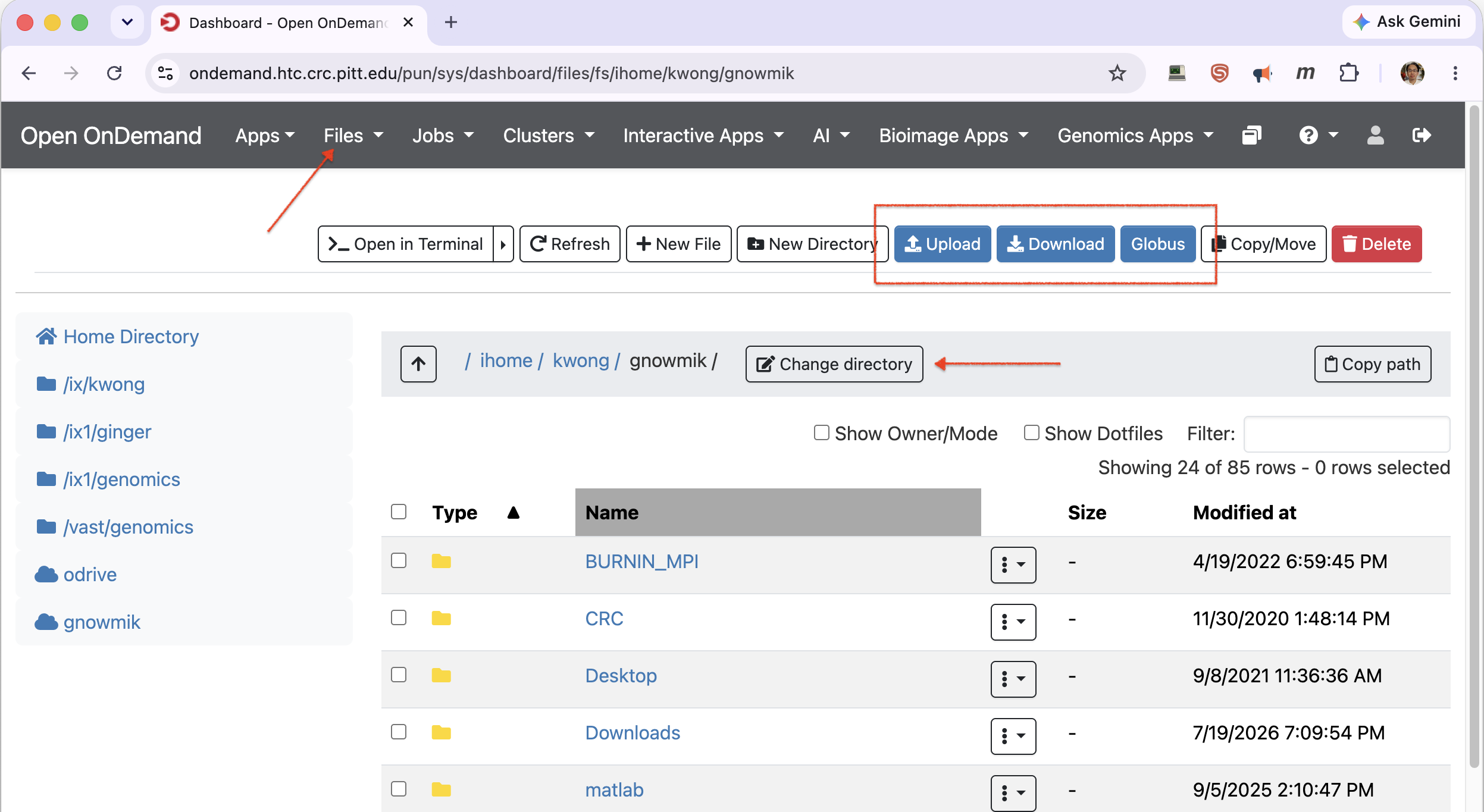
After logging in to Open OnDemand, open Files → Home Directory. From the toolbar you can Upload files from your computer, Download files to it, launch a Globus transfer, or switch folders with Change directory.
Globus
For large datasets, unreliable networks, or sharing with collaborators, use Globus. An institutional endpoint isn't required — you can set up a personal endpoint on your own computer to move large amounts of data reliably. Globus can also move data to and from Pitt OneDrive and SharePoint.
Command-line tools
rsync
Run rsync from a terminal on your local computer.
Copy to the cluster:
rsync -aP <files> <username>@htc.crc.pitt.edu:/ix1/<group>/<username>/
Copy from the cluster:
rsync -aP <username>@htc.crc.pitt.edu:/ix1/<group>/<username>/files/ .
-a preserves attributes recursively and -P shows progress and resumes partial
transfers — handy for large or interrupted copies.
scp
scp also runs from your local terminal and is fine for simple one-off copies (for large
or interruptible transfers, prefer rsync):
scp -r <files> <username>@htc.crc.pitt.edu:/ix1/<group>/<username>/
scp -r <username>@htc.crc.pitt.edu:/ix1/<group>/<username>/files/ .
Aspera
IBM Aspera enables high-performance downloads from data providers that run an Aspera
server — for example, EBI/ENA offers Aspera endpoints for large sequence datasets.
Download the current IBM Aspera Connect client into your home directory and run its
installer; the client installs to ~/.aspera, with ascp at
~/.aspera/connect/bin/ascp. A typical download from EBI's ENA:
~/.aspera/connect/bin/ascp -QT -l 300m -P33001 \
  -i ~/.aspera/connect/etc/asperaweb_id_dsa.openssh \
  era-fasp@fasp.sra.ebi.ac.uk:/vol1/fastq/SRR949/SRR949627/SRR949627_1.fastq.gz .
Downloading with wget or curl
To fetch a file from a URL:
wget https://domain.com/file
curl -O https://domain.com/file
Save under a different name with wget -O newname <url> or curl -o newname <url>.
If the URL contains special characters like ?, wrap it in single quotes so the
shell doesn't mangle it.
Cloud tools
The cloud CLIs are provided as modules. Load the current version — run
module spider <tool> to see what's available — rather than pinning an old one.
Pitt OneDrive
You can transfer data between Pitt OneDrive and the cluster. See
Microsoft OneDrive to use rclone, or
OneDrive via Globus to move data through Globus.
AWS S3
module load awscli
aws s3 sync /ix1/<group>/<username>/DataUpload s3://my-s3-bucket/data_from_cluster
Google Cloud Storage
module load gsutil
gsutil config
gsutil cp -r gs://gs-bucket-name/ .
Azure Storage
AzCopy moves data into and out of Azure Storage:
module load azcopy
azcopy copy "/ix1/<group>/<username>/folder/" "https://account.blob.core.windows.net/container/<SAS-token>" --recursive=true
For any of these, you can run the transfer as a batch job on a compute node rather than tying up a login session.